
Table of Contents
1. The short answer: this was not the Sheets zoom—it was a saved per-site zoom in the Chrome profile
On macOS, Google Sheets, Docs, Slides, and related editors can occasionally look abnormally large in one particular Chrome profile. Chrome's menu says 100%. The editor's own zoom says 100%. Other websites look normal, yet reducing Chrome to 80–90% makes Google editors look right. When those clues line up, inspect the profile's Preferences file for a saved zoom entry for docs.google.com.
In the case documented here, this entry remained on disk:
{
  "partition": {
    "per_host_zoom_levels": {
      "x": {
        "docs.google.com": {
          "zoom_level": 1.2239010857415449
        }
      }
    }
  }
}
That number does not mean 122.39%. Chromium converts an internal zoom level L to a display factor with 1.2^L. Therefore, 1.2^1.2239010857415449 = 1.25: exactly 125%. Chromium's current source lists 125% among its preset browser zoom factors and implements this conversion directly. [9]
The successful fix was narrow: while Chrome was no longer using the affected profile, back up Preferences and remove only the docs.google.com item below partition.per_host_zoom_levels. There is no need to erase cookies, browsing history, bookmarks, or passwords.
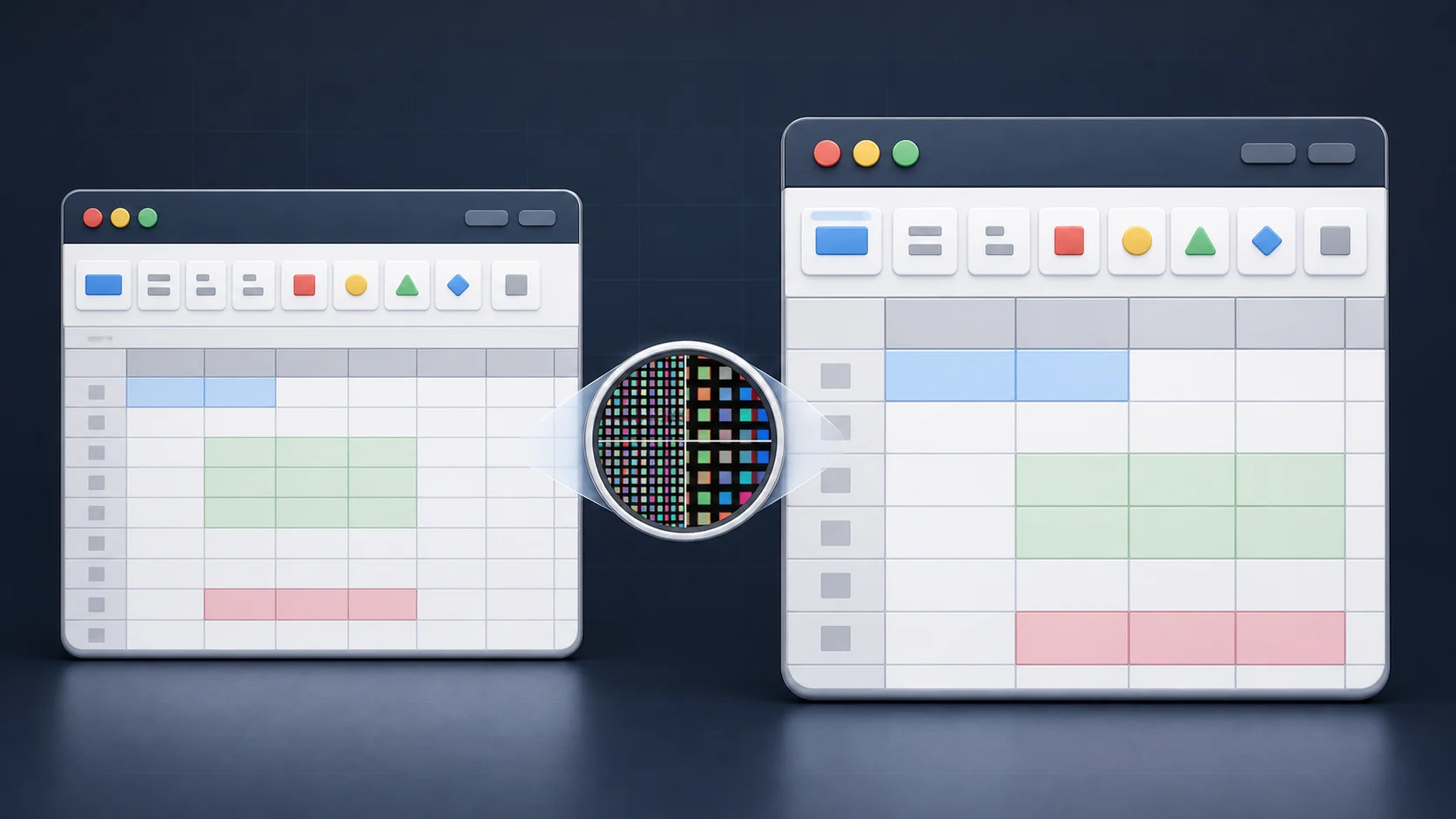
Figure 1: The same Mac and site can render at different scales because site zoom is stored per Chrome profile. If both the toolbar and grid are enlarged, the editor's internal zoom is not the whole story.
Symptom checklist
| Check | State consistent with this issue |
|---|---|
| Scope | Sheets is affected, and Docs or Slides may be affected too |
| Chrome profile | One profile is broken while another is normal |
| Chrome display | The menu appears to report 100% |
| Editor display | The Sheets or Docs zoom control also reports 100% |
| Workaround | Reducing Chrome to roughly 80–90% makes the editor look normal |
| Failed fixes | Command+0, cookie deletion, font settings, and the site-zoom settings UI |
This article is a second-line repair for cases where the normal reset has failed. Run the read-only checks in Section 2 first. Delete the entry only after you confirm that it exists.
2. Diagnose it: separate the three meanings of 100%, then inspect DPR and the saved value
Google editors expose more than one kind of zoom. Treating them as one setting hides the cause.
| Layer | What it changes | Typical control |
|---|---|---|
| Chrome page zoom | The whole page, including toolbars, menus, and grid | Command+Plus / Command+Minus / Command+0 |
| Docs or Sheets zoom | The document page or sheet content, independently of Chrome | The editor's 100% menu |
| macOS display scale | The display's logical resolution and pixel density | System Settings → Displays |
Google's official documentation describes Chrome's per-site page zoom and the separate 50–200% view control in Docs and Sheets. [1][2]
2.1 Compare devicePixelRatio in DevTools
Open the affected spreadsheet. On macOS, press Option+Command+I (or F12 where configured), select Console, and run:
console.log('devicePixelRatio:', window.devicePixelRatio)
If Chrome blocks pasting the first time, read the warning and type allow pasting yourself only after you understand the command. Chrome's DevTools team documents this as protection against self-XSS attacks that trick users into executing malicious code. [3] The line above only prints a browser value; it neither changes settings nor sends data.
Now run the same command in a normal Chrome profile while keeping the Mac, physical display, and display settings unchanged.
| Display baseline | Normal profile | Affected profile with 125% page zoom |
|---|---|---|
| Standard-density example | 1 | 1.25 |
| Retina example | 2 | 2.5 |
The useful signal is not an absolute value of 1.25. It is whether affected ÷ normal is approximately 1.25. devicePixelRatio describes the relationship between physical and CSS pixels and increases with page zoom. MDN also notes that ordinary pinch zoom does not change this value. [4] Moving the window to a different display can change the baseline, so compare under identical conditions.
2.2 Find the ghost entry without changing anything
In the affected profile, open chrome://version and copy the Profile Path. Chromium's own documentation recommends this field as the authoritative way to locate the profile directory. Chrome Stable on macOS normally stores profiles below ~/Library/Application Support/Google/Chrome, with folders such as Default, Profile 1, and Profile 2. [5]
Change only this line to match the path shown on your Mac. Use the folder from chrome://version, not the friendly profile name shown in Chrome's avatar menu.
CHROME_PROFILE_DIR="$HOME/Library/Application Support/Google/Chrome/Profile 1"
Then run this read-only inspection:
python3 - "$CHROME_PROFILE_DIR/Preferences" <<'PY'
import json, sys
from pathlib import Path

path = Path(sys.argv[1]).expanduser()
with path.open(encoding="utf-8") as f:
    data = json.load(f)

per_host = data.get("partition", {}).get("per_host_zoom_levels", {})
found = False

for partition_key, hosts in per_host.items():
    if not isinstance(hosts, dict) or "docs.google.com" not in hosts:
        continue
    entry = hosts["docs.google.com"]
    level = entry.get("zoom_level") if isinstance(entry, dict) else entry
    factor = 1.2 ** float(level)
    print(f"FOUND partition={partition_key!r}")
    print(f"zoom_level={level}")
    print(f"zoom_factor={factor:.6f} ({factor * 100:.0f}%)")
    found = True

if not found:
    print("No docs.google.com zoom entry found; do not run the repair yet.")
PY
This output matches the documented case:
FOUND partition='x'
zoom_level=1.2239010857415449
zoom_factor=1.250000 (125%)
If the script finds nothing, do not run the deletion step. Investigate extensions, Chrome policy, macOS accessibility zoom, display scaling, or a zoom entry for another host instead.
3. Root cause: a ghost entry restored into Chrome's HostZoomMap
Chromium stores host-specific zoom values in a dictionary named partition.per_host_zoom_levels. The current pref_names.h describes it as a dictionary mapping host names to zoom levels; hosts without an entry use the default zoom. [6]
At startup, ChromeZoomLevelPrefs reads that dictionary and initializes a HostZoomMap for each storage partition. The source also explains why the root profile partition commonly appears under the key x. When zoom changes, non-default values are written back to Preferences, while values equal to the default are supposed to remove the saved host. [7][8]
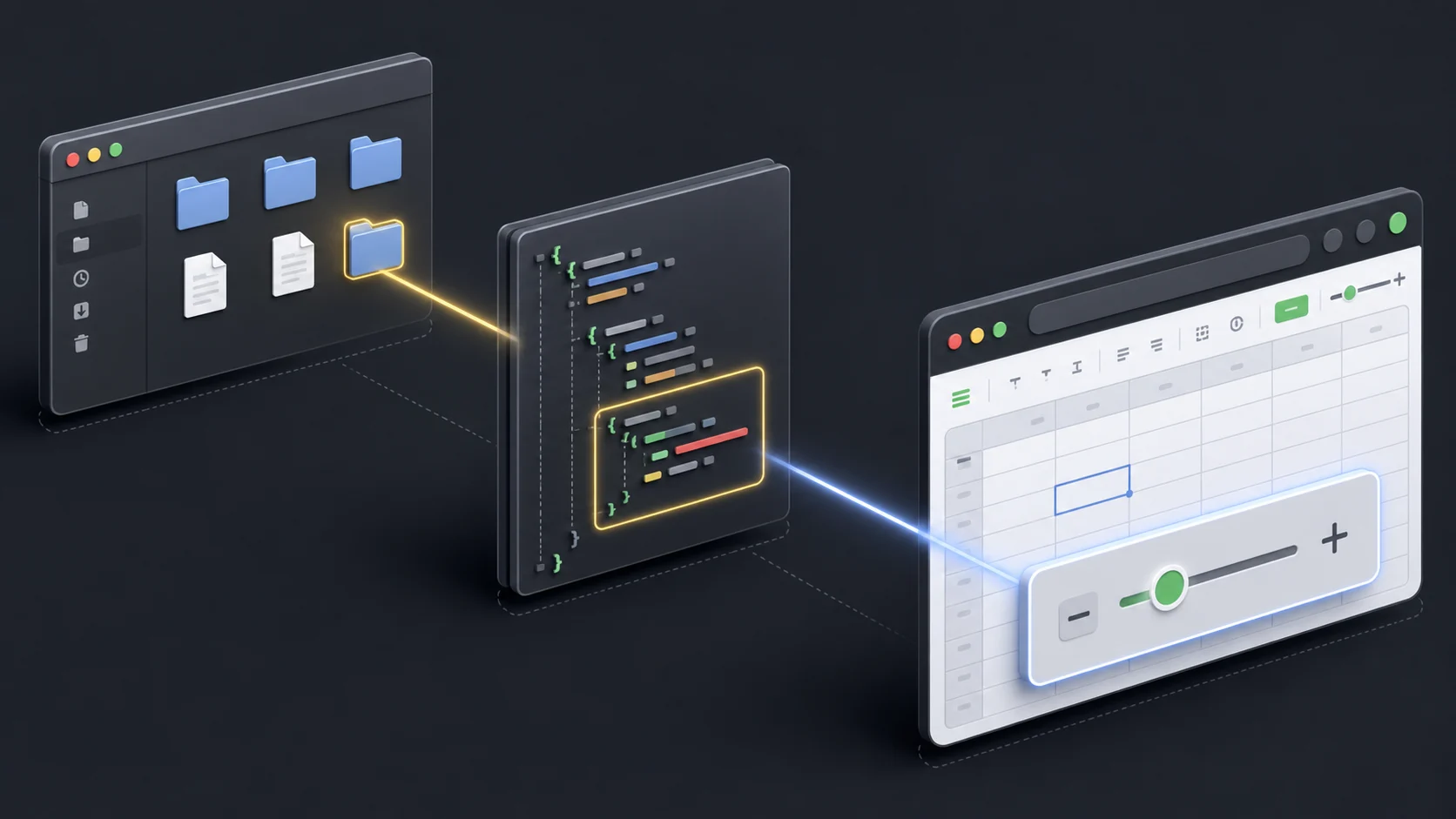
Figure 2: Google Docs does not directly read the local Preferences file. Chrome restores the saved value into HostZoomMap, and the result appears in the page zoom and rendering environment, including devicePixelRatio.
It helps to separate observed facts from inference:
| Confidence | Finding |
|---|---|
| Observed | Chrome's UI appeared to say 100%, while the affected profile still had a 125%-equivalent docs.google.com value in Preferences |
| Observed | Removing that item with Chrome stopped returned the UI to normal |
| Confirmed in Chromium source | Per-host values initialize HostZoomMap, and zoom level converts to a factor with 1.2^L |
| Strong inference | The UI reset state and persisted Preferences diverged, leaving a ghost entry that the UI no longer removed |
| Not established | The exact Chrome version and code path that created the divergence; no identical public Chromium bug was conclusively identified |
Why Google Sheets and Docs make the problem so obvious
First, the key is docs.google.com. The host-specific zoom does not apply to unrelated sites. Sheets, Docs, and Slides editing surfaces broadly share that host, so one value can affect several services at once.
Second, Chrome page zoom sits outside the editor's own 100% setting. If Chrome applies 125% outside the app, setting Sheets to 100% cannot prevent the toolbar, formula bar, row and column headers, and cells from being enlarged. Google officially announced a migration of Google Docs document rendering from HTML to canvas. Canvas implementations commonly account for devicePixelRatio to stay sharp, and MDN demonstrates that pattern. [10][4] However, public documentation does not establish exactly which private Sheets or Docs scaling code participated in this incident.
The precise explanation is therefore not “Google Docs reads Preferences.” It is: Chrome's residual host zoom altered the page rendering scale, and the discrepancy became especially conspicuous in a complex editor UI.
4. Repair: safely delete only the docs.google.com entry, with a backup
The next command writes to disk. Continue only if the diagnostic found the target. The script adds several safeguards:
- It creates a timestamped copy of the original
Preferencesfile. - It removes no setting other than
docs.google.comzoom. - It searches all partition buckets instead of assuming the key is always
x. - It writes a temporary JSON file, validates it, then replaces the original.
- It makes no change when the target is absent.

Figure 3: The repair does not erase the whole Preferences file. It backs up the file and removes only the docs.google.com entry from the per-site zoom dictionary.
Step 1: set the exact profile path
Copy the affected Profile Path from chrome://version. For example:
CHROME_PROFILE_DIR="$HOME/Library/Application Support/Google/Chrome/Profile 1"
Use Default if that is the folder shown. Chrome Beta, Dev, and Canary use different parent folders, so use the actual value rather than guessing.
Step 2: stop Chrome
At minimum, close every window belonging to the affected profile. To avoid a background app or shared browser process rewriting the old in-memory value, the safest option is to quit Chrome completely with Command+Q. This command should then print only the confirmation message:
pgrep -x "Google Chrome" || echo "Google Chrome is not running"
Editing while Chrome is running can be undone when the browser later saves its in-memory preferences.
Step 3: run the backup-first repair
In the same Terminal session where CHROME_PROFILE_DIR is set, paste this block:
python3 - "$CHROME_PROFILE_DIR/Preferences" <<'PY'
import json, os, shutil, sys, tempfile
from datetime import datetime
from pathlib import Path

path = Path(sys.argv[1]).expanduser()
if not path.is_file():
    raise SystemExit(f"Preferences not found: {path}")

with path.open(encoding="utf-8") as f:
    data = json.load(f)

per_host = data.get("partition", {}).get("per_host_zoom_levels", {})
removed = []

for partition_key, hosts in per_host.items():
    if isinstance(hosts, dict) and "docs.google.com" in hosts:
        removed.append((partition_key, hosts.pop("docs.google.com")))

if not removed:
    print("No docs.google.com zoom entry found. Nothing changed.")
    raise SystemExit(0)

stamp = datetime.now().strftime("%Y%m%d-%H%M%S")
backup = path.with_name(f"Preferences.backup-{stamp}")
shutil.copy2(path, backup)

fd, temp_name = tempfile.mkstemp(prefix="Preferences.", suffix=".tmp", dir=path.parent)
try:
    with os.fdopen(fd, "w", encoding="utf-8") as f:
        json.dump(data, f, ensure_ascii=False, separators=(",", ":"))
        f.flush()
        os.fsync(f.fileno())
    shutil.copymode(path, temp_name)
    with open(temp_name, encoding="utf-8") as f:
        json.load(f)
    os.replace(temp_name, path)
except Exception:
    if os.path.exists(temp_name):
        os.unlink(temp_name)
    raise

for partition_key, old_value in removed:
    print(f"Removed docs.google.com from partition {partition_key!r}: {old_value}")
print(f"Backup: {backup}")
print("Done. Start Chrome and verify Google Sheets at 100%.")
PY
Step 4: restart and verify both 100% settings
Open Chrome and load the same spreadsheet in the affected profile. Confirm all four:
- Chrome's menu zoom is 100%.
- The Sheets toolbar zoom is 100%.
window.devicePixelRatiomatches the normal profile.- Toolbars, formula bar, headers, and cells have normal proportions.
Roll back if necessary
If anything unexpected happens, quit Chrome completely and restore the timestamped backup printed by the script:
cp "$CHROME_PROFILE_DIR/Preferences.backup-YYYYMMDD-HHMMSS" "$CHROME_PROFILE_DIR/Preferences"
Replace the timestamp with the actual filename. List recent backups with:
ls -lt "$CHROME_PROFILE_DIR"/Preferences.backup-* | head
5. Why Command+0, cookie deletion, and the zoom settings page did not work
Under normal conditions, Command+0 or Chrome's Zoom levels settings page should reset a site's page zoom, exactly as Google's Chrome help describes. [1] Their failure here was evidence that this was not the normal state.
| Attempt | Why it did not address this case |
|---|---|
| Restart macOS or Chrome | A persisted value is loaded again on the next launch |
| Command+0 | The UI appeared reset, but the residual saved entry remained divergent in this case |
Remove it from chrome://settings/content/zoomLevels | The item disappeared from the UI while the on-disk docs.google.com entry was still observed |
| Delete cookies or site data | Host zoom is stored in profile Preferences, not the site's cookies |
| Change font or minimum font size | This was whole-page UI scaling, not a text-only setting |
| Set Sheets to 100% | The editor control cannot cancel Chrome page zoom outside the app |
The “ghost entry” model is consistent with the evidence: the state reported by Chrome's UI diverged from the state persisted in Preferences. Chromium's code normally listens for HostZoomMap changes, writes non-default levels, and removes hosts that match the default. [7] A disruption in change notification, persistence, or profile shutdown could leave an old file entry behind.
This one case is not enough to claim a confirmed bug in a particular Chrome release. If you can reproduce the state where the UI entry is gone but the JSON item remains, capture the Chrome and macOS versions, exact steps, and the relevant pre-repair JSON before reporting it to the Chromium Issue Tracker.
If the entry returns after deletion
- Check
chrome://policyfor managed settings. - Temporarily disable all extensions and test again.
- Open the same site in a new Chrome profile.
- Compare
devicePixelRatioon the same physical display. - Check macOS Accessibility → Zoom and display scaling.
- Re-run the read-only script before and after Chrome exits to see when the host is recreated.
If a fresh profile shows oversized content on every website, OS display scale or Chrome's global default zoom is more likely. If only docs.google.com in one profile is affected, the boundary closely matches this incident.
6. Windows, other Google editors, and prevention
Preferences path on Windows
Chromium's official user-data documentation gives %LOCALAPPDATA%\Google\Chrome\User Data as the Chrome Stable root on Windows. [5] Preferences is therefore typically one of:
%LOCALAPPDATA%\Google\Chrome\User Data\Default\Preferences
%LOCALAPPDATA%\Google\Chrome\User Data\Profile 1\Preferences
The direct repair described here was tested on macOS. The JSON structure comes from Chromium and is expected to be shared, but the Windows procedure is not independently verified in this article. On Windows, treat chrome://version as authoritative, quit Chrome completely, back up the file, and only then apply equivalent Python logic. Ask your administrator before editing a managed corporate profile.
Why more than Sheets may be affected
The key names a host, not a product: docs.google.com. Editors commonly served from that host include:
- Google Sheets
- Google Docs
- Google Slides
- Google Drawings
- Parts of Google Forms
Google Drive and Gmail use different hosts and may remain normal. The boundary “Google editor surfaces, but not every Google product” is therefore a useful diagnostic clue.
Prevention
- Distinguish Chrome page zoom shortcuts from the zoom control inside Docs or Sheets.
- If the UI suddenly grows, try Command+0 first. If it fails, compare DPR instead of permanently compensating with 80–90%.
- For multiple profiles, record the Profile Path from
chrome://version. - When directly editing Preferences, remove only the target host and always make a backup.
- Trackpad pinch and browser page zoom are not identical. A persistent 125% value that changes DPR is more consistent with Chrome page zoom such as Command+Plus than with ordinary visual pinch zoom, but the triggering gesture was not established in this case.
Here is the shortest safe decision sequence:
| Order | Decision |
|---|---|
| 1 | Reset both Chrome and Sheets to 100% |
| 2 | Compare DPR against a normal profile on the same display |
| 3 | Get the exact Profile Path from chrome://version |
| 4 | Use the read-only script to confirm docs.google.com and a 125%-equivalent value |
| 5 | Quit Chrome and remove only that host with the backup-first script |
| 6 | Re-check 100%, DPR, and actual UI proportions |
The deceptive part of this failure was that the visible “100%” was not the end of the diagnosis. Observe the UI state, effective rendering scale, and persisted disk state separately. That lets you remove one ghost entry safely before resorting to reinstalling Chrome or deleting an entire profile.
References
References
- [1]Google Chrome Help, Change text, image & video sizes (zoom). ↩
- [2]Google Docs Editors Help, Zoom or change your document view. ↩
- [3]Chrome for Developers, How Chrome DevTools helps to defend against self-XSS attacks. ↩
- [4]MDN Web Docs, Window: devicePixelRatio property. ↩
- [5]Chromium Docs, User Data Directory. ↩
- [6]Chromium source, chrome/common/pref_names.h. ↩
- [7]Chromium source, chrome/browser/ui/zoom/chrome_zoom_level_prefs.cc. ↩
- [8]Chromium source, content/public/browser/host_zoom_map.h. ↩
- [9]Chromium source, third_party/blink/common/page/page_zoom.cc. ↩
- [10]Google Workspace Updates, Google Docs will now use canvas based rendering. ↩

NEW NOVEL 2026/08/01
Clouded Glass
Polishing is not about force.
Volume two of The World Became Slightly Farther Away.Five stories that can also be read as a starting point.
View on Amazon
Jijoden.com
Your life is worth writing.
There is a truer self you can tell only to AI.Gather fragments of memory into a single story.
Take a LookRelated Articles
Fixing Chronic macOS Dictation Failures Structurally: A Practical Runbook
This guide breaks down recurring macOS Dictation failures by daemon layer (corespeechd, DictationIM, coreaudiod), then provides fast recovery steps, preventive tuning, and long-term migration options.
The 14GB ChatGPT.app That Froze My Mac Overnight: Hunting Down the Codex Memory Runaway and Making It Heal Itself
The macOS ChatGPT.app (Codex) ballooned to 14GB overnight and froze a 16GB MacBook Air. The cause was a combination of known app bugs and a single-thread Automations habit. This is a data-driven post-mortem, plus a fully automated three-layer fix: thread rotation, a memory watchdog, and history archiving.
Building nobetsu: IME Bypass and Differential Injection for Japanese Dictation That Keeps Going
Built-in macOS Dictation already inserts Japanese as you speak. nobetsu exists to bypass the IME and Live Conversion path that can stall during long sessions, then safely inject changing converted text by differential updates. This article opens that design with measurements, diagrams, and source code.
Silver Week Reshapes AI: GPT-6 Astra, Sol and Luna vs Claude Fable, Opus and Sonnet
A six-model comparison of launch strategy, intelligence, API prices, measured task costs, caching and access: GPT-6 Astra, Sol and Luna versus Claude Fable 5.1, Opus 5.5 and Sonnet 5.
What Can You Share with AI? Approval Criteria for Enterprise Code and Customer Logs
Authorize enterprise AI use with six repository acceptance criteria, log-sanitization examples, contract decisions and a reusable approval template. Primary sources checked September 19, 2026 distinguish permitted work, prohibited transfers and case-specific review.