

Start here: keep the old phone until life works on the new iPhone
A new iPhone is exciting. Then you open LINE and an old conversation is gone. Your photos seem to exist in one place but not another. Your commuter pass is missing, and your thumb keeps hunting along the screen edge for Android's Back gesture.
Moving from Android to iPhone is not a perfect copy of your old phone. It is much closer to moving house. You carry your photos, bring your account keys, get calls and payments working again, and learn new controls. Those are four separate jobs, and finishing one does not finish the others.
This is a first-aid kit to hand to someone who has just switched phones. You do not need to read it from beginning to end. Pick what is bothering you from the list below and read only that item.
Three promises to make before anything else
- Do not reset the old phone. Keep it charged and on Wi-Fi until everyday life works on the new iPhone.
- Do not create replacement accounts when something looks empty. An empty screen usually means you are signed into a different account.
- Do not erase an iPhone you have started using just to restart migration. New photos, LINE and eSIM settings get caught up in it.
The old phone is useful insurance, not a universal recovery tool. Once your phone number has moved to the iPhone, connecting the old phone to Wi-Fi will not bring ordinary SMS back to it. Nor can you assume the old LINE device keeps working as before after an account transfer.
Official information was checked on September 25, 2026, and this guide is written for users in Japan. It is not a claim that every procedure was tested on a real device. Menu names change with iOS and app versions, so use the search field in Settings if a label has moved. Note also that current iPhones, such as the Japanese-market iPhone 17, have neither a fingerprint sensor nor a SIM-card slot: they use Face ID and eSIM. Coming from an Android phone with fingerprint unlock and a microSD slot, this is where many small daily surprises begin.[1]
Find your symptom
What is bothering you right now?
Read only the items that apply. Each item ends with a link back to this list.
Read these five before erasing or handing over the old phone
AAccounts and apps
01Do I need an Apple ID? Can I use Gmail? 02My Google photos or mail are missing, or it is the wrong account 03Verification codes and passkeys are only on the old phone 04Parental controls and age restrictions have changed 05Apps, games or purchased items have not come backBPhotos and data
06The transfer is stuck on “one minute remaining” 07I finished setup before noticing missing data 08Pictures are in Google Photos but not in the iPhone Photos app 09Contacts or appointments are missing or duplicated 10Where are my SD card, PDFs, music and downloads?CLINE, Instagram and BeReal
11Old LINE chats are missing: what transfers for free? 12I want my full LINE history: do I need Premium? 13Instagram will not log in or shows the wrong account 14BeReal Memories are missing, or my number changed 15Notifications, photo access or call audio do not workDSignal and connections
16There is nowhere to insert my SIM card 17It works at home but not outside 18Wi-Fi will not connect, or it is slow 19SMS codes or certain messages do not arrive 20Headphones, the car or chargers behave differentlyAlso: A switching plan and a checklist before handing overiPhone and Android shares in Japan and worldwide
A | Accounts and apps: the same email address can open different doors
01 | Do I need an Apple ID? Can I use Gmail?
Why it happens Apple ID, now officially called Apple Account, is Apple's key to services such as the App Store and iCloud. It is separate from your Google account, so an iPhone needs one of its own.
Try this Create it with an email address you will keep receiving mail at. A Gmail address works; you do not have to create an iCloud mailbox. Complete the email and phone verification, and write down the address and your recovery options. If you see “already in use,” check whether you created an account earlier for an iPad or another Apple service, and recover that one instead.[5]
Don't Borrow a family member's Apple Account, which mixes photos and contacts. Registering the same Gmail address also does not make your Google password work for Apple. Apple is not uniquely difficult here; you simply now have a second key you never had to think about before.
02 | My Google photos or mail are missing, or it is the wrong account
Why it happens Your data is probably not gone. You may simply be signed into a different Google account. Personal, school and old accounts are easy to confuse.
Try this On the old Android, open the profile in Gmail and Google Photos and compare the email address letter by letter. Choose the same account on the iPhone and open a few old messages and photos. If the same account shows them in a browser, your data is safe in the cloud. Google Photos backs up to one account at a time, so check which account each app is using.[6]
Don't Create another Google account because the first screen is empty. Gmail, Google Maps and Chrome all work on iPhone; you do not have to give up every familiar service at once.
03 | Verification codes and passkeys are only on the old phone
Why it happens Passwords, SMS codes, authenticator codes and passkeys are different mechanisms. Seeing an app icon on the new iPhone does not mean your logins are ready.
Try this If you used Google Authenticator, check whether syncing to your Google account was on. If not, export from the old phone and import on the new iPhone. Then sign in to each real service to confirm it works. Deleting a synced code on the old phone can also delete it from other devices, so take care when tidying up.[7]
For passkeys, check where they are stored and what each service supports. While the old phone still signs in, add a login or recovery method for the new iPhone. Do not assume they will simply move across.
Don't Send authentication QR codes or recovery codes to anyone. If you are locked out, use the service's official account recovery. This is exactly the situation where keeping the old phone pays off most.
04 | Parental controls and age restrictions have changed
Why it happens Family Link's Android device supervision does not become supervision of a whole iPhone. A parent managing an Android phone from an iPhone is a different arrangement from supervising a child's iPhone.[8]
Try this Use the child's own Apple Account and set up Family Sharing, Screen Time and purchase approvals again with a parent. In Japan, a parent creates the Apple Account for a child under 13. Check limits on Google services separately from whole-device controls.[9]
Don't Falsify a birth date or routinely use a parent's account to get around installation limits. Agree together on messaging apps, nighttime notifications and purchases.
05 | Apps, games or purchased items have not come back
Why it happens The Android and iPhone versions are separate apps, even with the same name. Apple's migration can line up some supported free apps, but it does not restore layouts, login sessions or the data inside each app.[10]
Try this Check the developer in the App Store, install the app and sign in with your existing account. For games, read the transfer instructions and the “moving to another OS” notes on the old phone first. An app purchase, paid in-game currency and a saved game may each follow different rules.
Don't Rush to buy everything again, delete a game before linking it, or hand important login details to a migration utility. Some items, including LINE Coins, cannot move between operating systems, so check each service's list.[11]
B | Photos and data: move only what needs moving

Separate photographs already stored in the cloud from files that exist only on the old phone. Not everything needs another full copy.
06 | The transfer is stuck on “one minute remaining”
Why it happens Large videos, many small files, connection changes and post-transfer processing all add time. The “time remaining” on screen is an estimate, not a promise.
Try this Keep both phones on chargers and wait until the iPhone finishes. While Move to iOS runs, do not use other apps on the Android or answer calls. After repeated failures, review mobile data and automatic network switching on the Android and follow Apple's official retry steps. A supported USB-C data cable is another option.[10]
Speed it up Before retrying, separate photos you can already see in a cloud service such as Google Photos from data that exists only on the old phone, and select only what you need. Cloud photos can be viewed on the iPhone by opening Google Photos, so there is no need to carry them all again. Leave mass deletion until later.
Using a shop? At the time checked, Docomo lists a ¥2,200 data-transfer service and, depending on purchase channel and circumstances, a ¥3,300 setup-and-transfer category. Data coverage is limited. When booking, ask specifically about Android-to-iPhone support, older LINE chats, transit cards, login assistance and the expected duration. A shop cannot remove the underlying transfer volume or identity-check delays.[12]
07 | I finished setup before noticing missing data
Why it happens Move to iOS is only available during the iPhone's initial setup. Using it afterward requires erasing the iPhone.[10]
Try this First, write down what is actually missing. Google contacts can be synced, photos opened in Google Photos and PDFs copied through a cloud service, so you can move just what you need by hand. Apple documents manual transfer options too.[13]
Don't Erase the new iPhone's photos, LINE state and eSIM settings just to retrieve a few pictures. If you really must start over, first save anything created on the new phone and find out how to restore your cellular service. Starting from scratch is the last resort, after your current data is safe.
08 | Pictures are in Google Photos but not in the iPhone Photos app
Why it happens Google Photos' cloud and the iPhone's Photos app are different places. Seeing a picture in Google Photos does not mean every picture has been saved to the iPhone itself.
Try this Choose the same account in Google Photos on the iPhone and open old photos, recent photos and a long video. On the old phone, check that backup finished and which folders were included; photos on microSD cards and in Downloads are easy to overlook. Save to the iPhone only the pictures you want to post elsewhere or view offline.[6][14]
Don't Select everything in Google Photos and send it to the trash because you think migration is done. That deletes it from the cloud, not just from one phone. iCloud Photos can also carry deletions to your other devices. Confirm important memories exist somewhere else before tidying up.[15][16]
09 | Contacts or appointments are missing or duplicated
Why it happens Contacts and calendars may be stored on the phone, the SIM, Google, iCloud or another calendar service. Copying and syncing at the same time can create duplicates.
Try this On the old phone, find out which account stored them. For Google contacts, add the Google account in iPhone Settings and turn on contact syncing. Check the account and visible calendars for appointments too. Comparing one family member's contact and one appointment next week tells you whether they moved.[17]
Don't Bulk-delete one set of duplicates, which can also delete the synced originals. Decide where future entries should live, then make an export or other backup before cleaning up.
10 | Where are my SD card, PDFs, music and downloads?
Why it happens An iPhone has no microSD slot for adding storage, and apps keep their files in different places from Android.
Try this Check the card with the old phone or a computer and copy the files you need to a service such as Google Drive. On iPhone, open the Files app, tap Browse and look in On My iPhone, iCloud Drive and Downloads. After you set up the Google Drive app, it can also appear inside Files.[18][19]
Don't Treat offline music or video from a streaming app as ordinary files to carry across. Often you sign in to the same subscription and download again. Make a list of notes, recordings, PDFs and school handouts on the old phone.
C | LINE, Instagram and BeReal: getting the account back is not getting the history back

Regaining account access does not necessarily restore old conversations and photos. Check history transfer separately.
11 | Old LINE chats are missing: what transfers for free?
Why it happens In LINE, transferring the account and restoring chat history are separate. Between Android and iPhone, swapping a Google Drive backup for iCloud does not bring back your full history.[20]
Try this If the old phone still works, use the easy-transfer QR code. On the old phone, open LINE Home → Settings → Easy transfer QR code; on the new iPhone, start from Log in and choose the QR-code transfer. Complete the identity checks and review what was restored. This route moves the most recent 14 days of chats for free. If you need anything older, read item 12 before you start. Check friends and groups separately from chat history.[21][11]
Don't Transfer without preparing a backup and assume the old phone can rescue the history later. If older messages are already gone, what you can do depends on the remaining originals and usable backups. Stop reinstalling and go to official support. Saving text or pictures separately does not mean they can be put back into the original LINE chat.
12 | I want my full LINE history: do I need Premium?
Why it happens In Japan, Premium Backup, a benefit of LYP Premium, lets you carry older history between Android and iPhone. It is a different service from LINE Stickers Premium, despite the similar name.[22]
Try this If you need messages older than 14 days, check your plan and conditions on the old phone, turn the feature on and wait until the first backup finishes before transferring through the official Premium Backup route. Storage is capped at 100GB. It cannot bring back expired photos, and past media not stored on the phone at the first backup may not be included.[22][23]
Is it worth it? If recent chats are enough, you do not need it. If you want years of memories, it is worth considering. Having to read subscription terms just to move phones can feel like extra paperwork, but check trial eligibility, the renewal date and what happens when it ends. Not everyone gets a trial, and the cloud backup is not kept forever after the benefit ends, so do not cancel before confirming the restore.[24]
Watch out Resetting your LINE password during the transfer can delete the Premium Backup. While the old phone still works, confirm your password and the restore conditions through the official steps. The first backup also needs free space on the phone, so read the error guidance if it stops.[22]
13 | Instagram will not log in or shows the wrong account
Why it happens You may be mixing up the username, registered email, phone number or a login linked to another service, or the new device may be triggering two-factor authentication.
Try this Check the exact username on the old phone's profile. Use the login message sent to your registered contact and, when asked for two-factor authentication, your authenticator app or saved backup codes. Meta also recommends keeping contact information and two-factor authentication up to date. If you are still stuck, use the app's official login help.[25]
Don't Give codes or passwords to third parties offering to “recover your account.” Also, seeing your published posts does not mean unfinished drafts on the old phone are safe. Save any text or material you need before deleting the app.
14 | BeReal Memories are missing, or my number changed
Why it happens Changing phones and phone numbers at the same time makes it easy to create a second account by accident, and that complicates everything.
Try this First confirm that you are signed into the original account, then check Memories in your profile. If your number changed, use the number-change request from the login screen described in BeReal's help. If that fails, contact official support with your old number, new number, original username and other details they ask for.[26][27]
Don't Assume two accounts' memories can be merged later. BeReal states that data cannot be merged or transferred between accounts. It also warns that an account already registered to the destination number will be deleted during the transfer. Check which account is affected before you continue.[26]
15 | Notifications, photo access or call audio do not work
Why it happens Signing in does not grant permissions. Notifications, photos, camera and microphone each need approval again on the new iPhone, and notifications are also affected by Focus and in-app settings.
Try this Check Settings → Notifications → the app, then Focus and the app's own settings. If only some photos can be selected, review photo access and add the pictures you need. If your voice does not come through on calls, check microphone access; if you cannot shoot, check camera access. Asking a family member to send one test message shows where things stop.[28][29]
Don't Delete the app before checking permissions; you can lose drafts or data stored only on the phone. Nor do you need to allow every app full access to photos or location. Grant only what the feature you use requires.
D | Signal and connections: working on home Wi-Fi does not prove your line is active

Home internet, cellular service and SMS authentication are separate checks. That distinction helps explain why a phone works indoors but stops outside.
16 | There is nowhere to insert my SIM card
Why it happens The Japanese-market iPhone 17 is eSIM-only and has no SIM-card slot. You cannot simply move the SIM card from your Android phone.[1]
Try this Follow your carrier's official instructions for switching to an iPhone and issuing or transferring an eSIM. Have Wi-Fi, account access and the subscriber's verification methods ready. Whether you can transfer directly from Android depends on the carrier, phone and OS; if the option does not appear, use the carrier's route.[30]
Don't Cancel your old line yourself before activation or delete an eSIM as an experiment. Keeping your number while changing carriers requires the proper porting procedure. After activation, test calls in both directions, SMS and data with Wi-Fi turned off.
17 | It works at home but not outside
Why it happens Wi-Fi may be working while the cellular line is still inactive. The data line selected on a dual-SIM setup or carrier-specific APN requirements may also be involved.
Try this In Settings → Cellular, check that your plan is on and selected for data. Turn Airplane Mode on for at least 15 seconds, turn it off and restart if needed. While on Wi-Fi, open Settings → General → About to see whether a carrier-settings update appears. If the problem remains, ask your carrier to check activation, outages and your account.[31]
Don't Install another carrier's APN profile found in a search result. If a profile is needed, use only your own provider's official instructions. If the problem is limited to certain buildings or places, check the coverage before deciding the phone is faulty.
18 | Wi-Fi will not connect, or it is slow
Why it happens Joining Wi-Fi is not the same as reaching the internet. A wrong password, the router, a venue's or school's sign-in page, or a VPN can stop things.
Try this Check the network in Settings → Wi-Fi and compare with another device on the same connection. At home, restart the router and the iPhone. Before forgetting a network, have its password ready. At school or in a dorm, ask the administrator and follow that network's rules for settings such as private Wi-Fi address.[32]
Don't Start with Reset Network Settings. It removes saved Wi-Fi networks and some network settings, creating extra setup work. It is a later step in Apple's troubleshooting, so note what you need to reconnect first.
19 | SMS codes or certain messages do not arrive
Why it happens SMS travels over your phone-number line, while LINE and similar apps use the internet. Because they work differently, one can stop while the other works. RCS registration, the sender's settings and message filters also play a part.
Try this First check that ordinary SMS arrives on the new iPhone's line. If only verification codes fail, check the number you entered, blocking settings and the required wait before resending, and do not hammer the resend button. If you used RCS in Google Messages on the old phone and some messages stop, follow Google's deactivation steps. RCS now works on iPhone under certain conditions, so “iPhone cannot use RCS” is not a reliable rule.[33]
Going the other way If messages stop after moving from iPhone to Android, you may need to deregister iMessage. Apple offers an online route even when the old iPhone is gone.[34]
20 | Headphones, the car or chargers behave differently
Why it happens A Bluetooth accessory may still be connecting to the old phone automatically. And USB-C describes the shape of the connector, not identical speed or features across every cable.
Try this Turn off Bluetooth on the old phone for a while, put the accessory into pairing mode and connect through iPhone Settings → Bluetooth. Check your car's manual to see whether it supports Android Auto, CarPlay or both. Use a suitable power adapter and cable for charging, and a data-capable cable for migration.[35][1]
Don't Reset every accessory just because one will not connect. Some smartwatches do not support iPhone, depending on the model and app, so check the manufacturer's compatibility list before replacing anything.
E | Transit, money and contracts: reinstalling an app is not enough
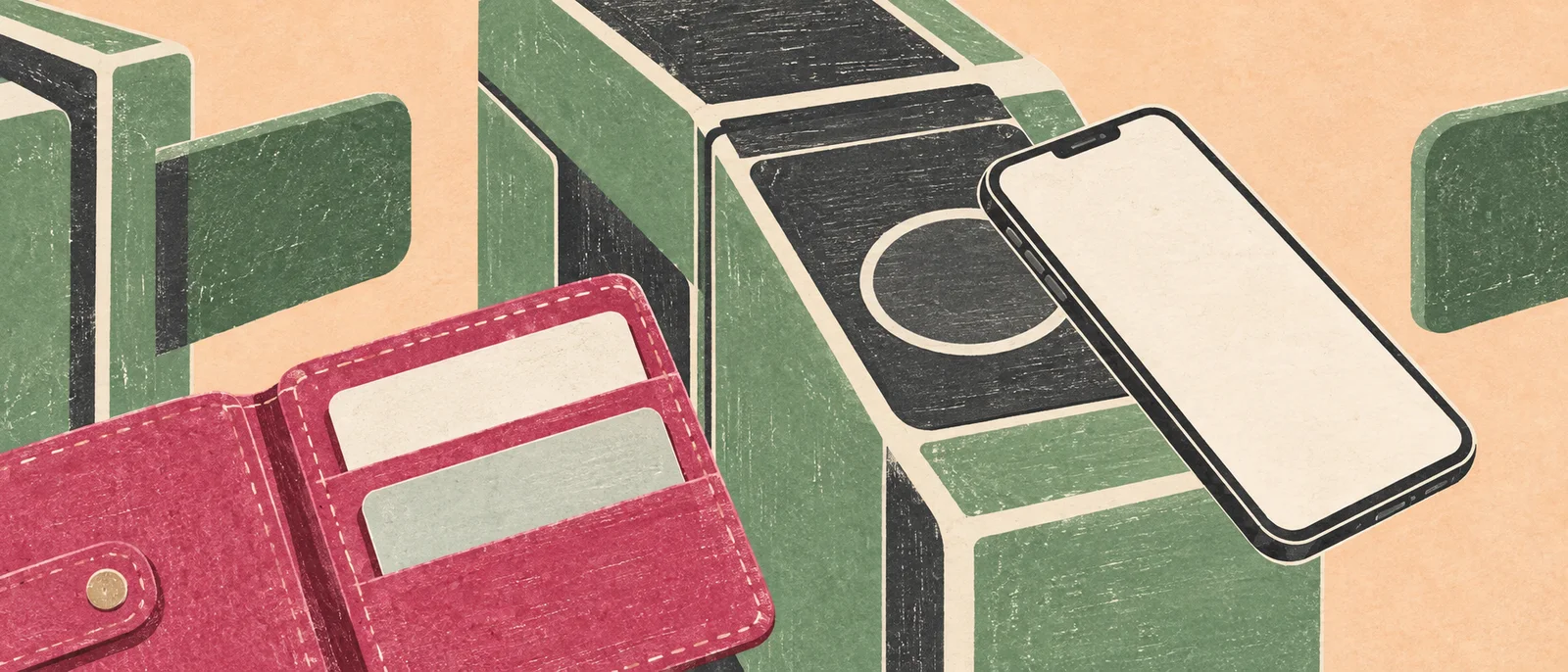
Transit cards, payment cards and bank authentication have separate migration processes. Complete them calmly before the morning commute.
21 | I cannot transfer my Suica or commuter pass
Why it happens Suica is not copied like a photo. It has to be “deposited and received” through a set procedure.
Try this Deposit the Suica to the server from the old Android, then choose “Transfer Suica from your previous device” in the iPhone Suica app and receive it with the same login details. Do not issue a new Suica or add a physical card on the new iPhone before the transfer. JR East requires a destination phone with no Suica set up.[36]
Check after moving Look at the card in Wallet, the balance, the commuter-pass route and expiry, and the Express Transit setting. If your Suica ID number changes, update linked services such as JRE POINT and reservations. If the old Android is broken and cannot deposit the card, official guidance for Android-to-iPhone moves treats it as a case needing withdrawal, a refund and new issuance. “Just reissue it later” is not safe advice.[37]
22 | PASMO will not transfer, or I already issued a new one
Why it happens Mobile PASMO has its own rules. It looks similar to Suica, but the procedures are not the same.
Try this Confirm that you are a registered member on the Android side, then use “Deposit card (device change)” for the PASMO in Osaifu-Keitai. In the iPhone PASMO app, choose the device-change / cannot-find-your-PASMO option and the route for former Android users. Once deposited, the card no longer works on the old phone.[38]
If you get stuck If you have already set up PASMO on the new iPhone or can no longer operate the old phone, stop deleting things and check the matching FAQ. When the old Android cannot deposit the card, a refund may be needed instead of a normal transfer. Also, Apple Pay PASMO cannot be transferred directly back to Android. If you might return to Android one day, that difference matters.[38][39]
23 | My Google Wallet cards are not in Apple Pay
Why it happens Even with the same card issuer, a card registered in Google Wallet does not move into Apple Pay by itself.
Try this Add a supported card with the add button in the Wallet app and complete the issuer's verification. If it fails, contact the issuer. Apple Pay is the wallet; the actual payment method at a shop may be iD, QUICPay or contactless card payment depending on the card. Check which method the shop accepts.[40][41]
Don't Blame the old phone's registrations and delete them all. Credit cards and transit cards also move through separate procedures. On the first day, carry a physical card or cash as a backup.
24 | Banking, PayPay or electronic tickets do not work
Why it happens Services that handle money or admission may need fresh identity checks or device registration on the new phone, even when your login works.
Try this Look for the official “changing devices” guidance in each bank, payment and ticket app. PayPay's route depends on whether your registered phone number changed. For banking, do not stop at seeing your balance: confirm the authentication features you need are registered. Before a concert, make sure the ticket shows on the new iPhone and meets the admission rules.[42][43][44]
Don't Treat a screenshot as a transferred ticket. Some systems require phone-number verification or a live app screen. If a service restricts when you can migrate, ask the provider, including whether to keep the old phone for the event.
25 | My Android subscriptions are still charging me
Why it happens Changing phones does not end contracts. Deleting an app does not cancel a subscription bought through Google Play.[45]
Try this Check three places to find where you subscribed: Google Play's payments and subscriptions, the iPhone's subscription list and each service's own website. See whether your existing account works on the iPhone before signing up again. Cancel anything you do not need through the service that bills you, and note the next renewal date.
Don't Assume you are not paying because a subscription is missing from the iPhone's list. iCloud and Google storage are separate plans too. Choosing one home for your photos helps you avoid paying for two storage plans by accident.
F | “Where did that go?”: an address book for everyday controls
26 | Where are Back, Home and the app switcher?
Why it happens Android's system-wide Back action does not map perfectly onto the way each iPhone screen lets you go back.
Try this Start by learning these four.
- Go Home: swipe up from the bottom edge
- Switch apps: swipe up from the bottom edge and pause
- Control Center: swipe down from the top-right corner
- Notifications: swipe down from the top center
To go back a screen, look for the back button at the top left of the app. Swiping from the left edge to the right works on many screens, but it is not a universal gesture.[46]
Don't Force-close every app out of habit. Fixing a misbehaving app is different from everyday navigation. Being slow for the first few days while you find things is completely normal.
27 | Finding apps, settings, Chrome and Gmail
Why it happens A missing Home Screen icon does not mean a missing app. It may simply be in the App Library.
Try this Swipe down from the middle of the Home Screen to search. You can also search for a feature inside Settings. If you want to keep using Chrome and Gmail, install them and choose your usual browser and mail app in Settings → Apps → Default Apps. The available categories depend on region, iOS version and app support.[47][48]
Tip Google Photos for pictures, Gmail for email and your usual video apps are all fine choices. Getting an iPhone does not mean you must move everything to Apple.
28 | Typing, correcting text and taking screenshots
Why it happens The Japanese keyboard layout, cursor movement and shortcuts are different. Features some Android phones had, such as three-finger screenshots, do not carry over.
Try this In Settings → General → Keyboard, choose Japanese kana or romaji input, whichever you prefer. Hold the space bar to move the cursor. Put frequently typed addresses into text replacement. To take a screenshot on iPhone 17, briefly press the side button and the volume-up button together; do not hold them.[49][50]
Don't Try to customize everything on day one. Being able to fix text and take a screenshot is a good first milestone. If you add another keyboard app, check the permissions it asks for.
29 | There is no fingerprint reader, and Face ID struggles
Why it happens iPhone 17 uses Face ID rather than fingerprint-based Touch ID; there is nowhere to put your finger. Fingerprint unlock has not disappeared from smartphones, and some Android models still offer it.[1]
Try this Check Settings → Face ID & Passcode to see whether setup needs repeating. Clean and uncover the area around the camera, and review the setting for using Face ID with a mask. A passcode is still required at times such as after a restart, so do not forget it.[51]
Don't Keep guessing your passcode every time your face is not recognized. Unlocking the phone and being signed into an app are separate things. Banking apps may need their own authentication settings turned on.
30 | Battery drain, heat and not enough storage
Why it happens At first, setup, updates running in the background, photo syncing and app downloads overlap. First-day battery life alone does not prove a faulty battery.[52]
Try this Open Settings → Battery to see what is using power. Check Settings → General → iPhone Storage and start with offline videos you no longer need. The iPhone's own storage, iCloud and Google storage are separate; buying more iCloud does not enlarge the phone's storage.[53]
Stop right away A temperature warning, charging paused by heat, or abnormal heat during ordinary use should not be ignored. Stop charging and heavy tasks and move somewhere cooler; if it continues, contact Apple. Before deleting piles of photos to free space, read item 08 again.[54]
Don't do it all in one night: a switching plan
This is a suggested way to split the work, not a standard completion time. The number of apps, the amount of video, connection speed and identity-check delays all change how long it takes.
1Before the switch
Confirm account IDs for Google, Apple, LINE and others, your recovery methods, backups and transit-card conditions.
Ready to move on when: you can sign in on the old phone and the history you need is backed up
2Line and setup
Activate the eSIM through your carrier and transfer the data you need.
Ready to move on when: calls, SMS and data without Wi-Fi all work
3Get daily life back
Check LINE, Instagram, BeReal, transit, payments, and school or work apps.
Ready to move on when: conversations, photos, passes and logins work on the new iPhone
4A few days later
Compare both phones and sort out missing data and subscriptions.
Ready to move on when: checks are done before any trade-in or return deadline, then erase the old phone
Eight checks before handing over the old phone
- Calls and SMS work
- The LINE history you need has moved
- Photos and videos are all there
- Contacts and appointments are all there
- Suica, PASMO and commuter passes have moved
- Banking and payment apps pass authentication
- Authenticator codes and recovery methods have moved
- Tickets and files stored only on the phone have moved
Decide when to hand over the old phone by “everything works,” not by a number of days. Trade-in and return-program deadlines still apply separately.
When a family member helps, let the owner type their own passwords, and simply write down together which email address each service uses. The goal is not only to hand over a working phone but to leave the owner a way back in next time. Until those checks are done, the old phone remains a spare door.
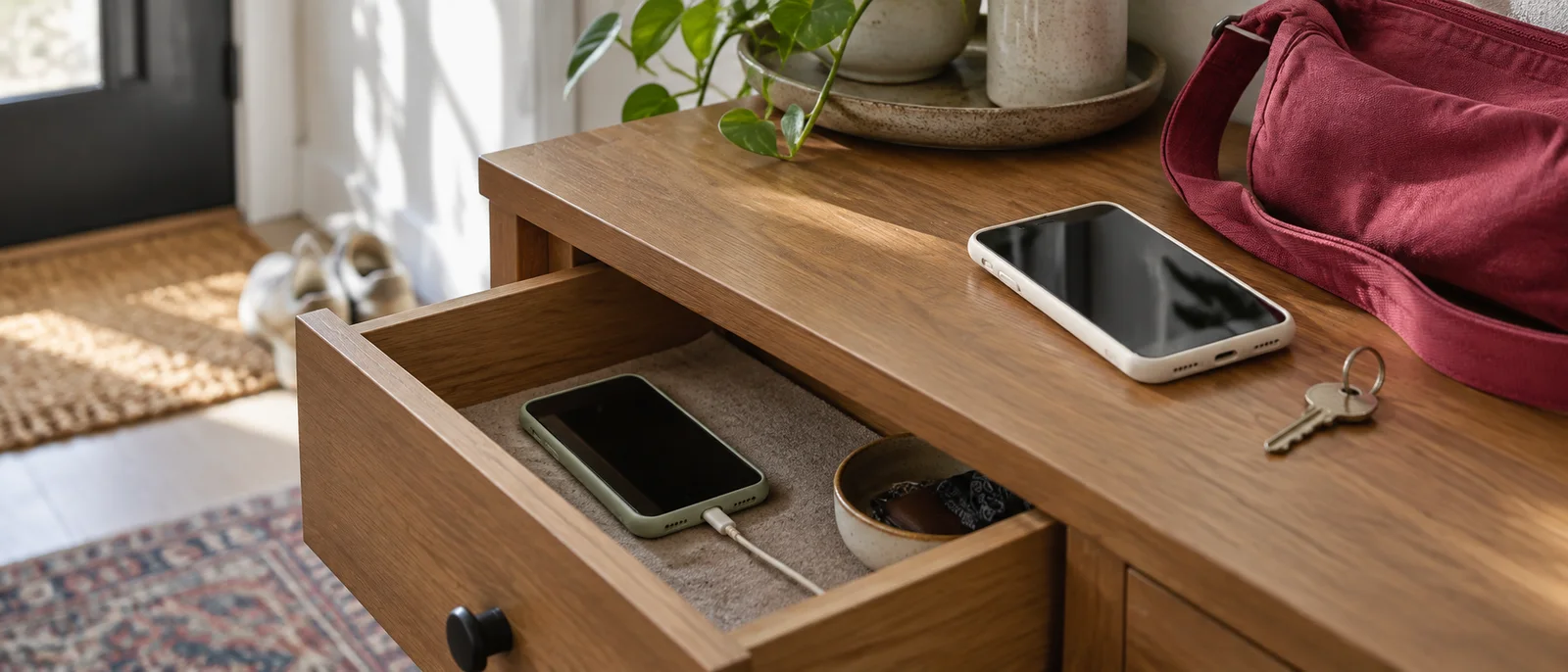
The old phone's job does not end when the new one boots. Confirm that everyday life works before passing it on.
Bonus: once on iPhone, do people never go back? Japan and the world in numbers
Android leads worldwide. In Japan, the share of iPhone users is much higher. The two figures below are measured differently, though, so they cannot be compared on the same scale.
Worldwide
Share of web activity (Statcounter, August 2026)
Android 67.6%iOS 32.4%
Japan
OS of the main phone (MMD, August 2026, ages 18–79)
Android 54.1%iPhone 45.6%
The worldwide figure is Statcounter's August 2026 mobile OS measure: Android 67.61%, iOS 32.36%. It reflects web activity on participating sites, not handset sales or a direct count of users.[55]
The Japanese figure comes from MMD's August 2026 survey: Android 54.1% and iPhone 45.6% for the main phone. The survey covered 40,000 people aged 18–79, and the OS shares use 34,838 respondents who knew their phone model, weighted to match the population. In the same survey, iPhone 17 was the most-used handset series among people in their teens and twenties. So a circle of friends full of iPhones and an Android majority nationwide can both be true. Note that the survey's “teens” are only 18- and 19-year-olds.[56]
So do people who switch to iPhone never go back? Usage shares alone cannot tell us whether more people move from Android to iPhone than the other way, or whether iPhone users stay. The sources checked here do not support any figure for those flows or retention rates.
Familiar controls, purchased apps, accessories and family members who can help are all reasons to pick the same platform next time. Price range, fingerprint unlock and customization can also make Android attractive. You have no obligation to fit your life around one brand forever.
If you return to Android someday, this list still works. Check separately, though, iMessage deregistration, LINE history, the lack of direct Apple Pay PASMO transfer, accessories such as Apple Watch and subscriptions billed through Apple. Do not lump Suica and PASMO together as “transit cards” either; look each one up.[34][39][36]
Know where your contacts and photos live, keep recovery options ready and note how you sign in to each service. That alone makes the next move far lighter. Struggling with new controls does not mean you are bad with technology; your familiar tools have simply changed address. I hope this page becomes a map you open only when you need it.
How this guide was made, and its limits
These 30 items are not a ranking by how many people had each problem. Public Japanese questions include uncertainty about how much of a banking app transfers, trouble passing photos between phones, and LINE transfers that kept only 14 days of chats. We used those questions as starting points, then checked the relevant failure conditions against official help pages. The questions show that a problem exists; answers posted beneath them are not treated as evidence of current behavior. Searchable posts are a biased sample, so they cannot show how often each problem happens across all users.[2][3][4]
The steps are a general summary based on official guidance and do not guarantee account recovery or a successful migration. If an error or your contract differs, contact the service before resetting, withdrawing or deleting a card. Illustrations are AI-generated concept art, not actual settings screens.
References
- [1]Apple: iPhone 17 specifications for Japan. ↩
- [2]Yahoo Japan question about banking-app migration (question only). ↩
- [3]Yahoo Japan question about photo transfer (question only). ↩
- [4]Yahoo Japan question about 14-day LINE history (question only). ↩
- [5]Apple: creating an Apple Account. ↩
- [6]Google Photos: backing up photos and videos. ↩
- [7]Google: Authenticator synchronization and transfer. ↩
- [8]Google: Family Link device limitations. ↩
- [9]Apple: creating a child account. ↩
- [10]Apple: moving from Android to iPhone. ↩
- [11]LINE: data that can be transferred. ↩
- [12]Docomo: setup support, scope and prices. ↩
- [13]Apple: moving content manually from Android. ↩
- [14]Google Photos: downloading media. ↩
- [15]Google Photos: deleting photos and videos. ↩
- [16]Apple: iCloud storage and photo deletion. ↩
- [17]Google: syncing contacts to iPhone. ↩
- [18]Apple: finding files on iPhone. ↩
- [19]Apple: third-party storage in Files. ↩
- [20]LINE: Android-to-iPhone account transfer. ↩
- [21]LINE: easy-transfer QR codes. ↩
- [24]LINE: plan changes and backup retention. ↩
- [25]Meta: keeping Instagram accounts secure. ↩
- [26]BeReal: transferring an account to a new phone number. ↩
- [27]BeReal: Memories. ↩
- [28]Apple: notification settings and delivery. ↩
- [29]Apple: controlling hardware permissions. ↩
- [30]Apple: setting up eSIM. ↩
- [31]Apple: troubleshooting cellular service. ↩
- [32]Apple: Wi-Fi troubleshooting. ↩
- [33]Google Messages: RCS settings and deactivation. ↩
- [34]Apple: deregistering iMessage. ↩
- [35]Apple: pairing Bluetooth accessories. ↩
- [36]JR East: Suica device changes and destination requirements. ↩
- [37]JR East: Android-to-iOS Suica procedure. ↩
- [38]PASMO: Android-to-iPhone transfer and restrictions. ↩
- [39]PASMO: receipt problems and reverse-transfer restriction. ↩
- [40]Apple: setting up Apple Pay. ↩
- [41]Apple: accepted payment methods in Japan. ↩
- [42]PayPay: changing devices and phone numbers. ↩
- [43]MUFG: authentication after a device change (one bank example). ↩
- [44]Tixplus: example electronic-ticket admission rules. ↩
- [45]Google Play: managing subscriptions. ↩
- [46]Apple: gestures on Face ID iPhones. ↩
- [47]Apple: opening and finding apps. ↩
- [48]Apple: changing default apps. ↩
- [49]Apple: selecting and editing text. ↩
- [50]Apple: taking screenshots. ↩
- [51]Apple: setting up Face ID. ↩
- [52]Apple: battery drain after setup and updates. ↩
- [53]Apple: checking device storage. ↩
- [54]Apple: temperature warnings. ↩
- [55]Statcounter: worldwide mobile OS, August 2026 (web activity). ↩
- [56]MMD: August 2026 smartphone OS survey. ↩

NEW NOVEL 2026/08/01
Clouded Glass
Polishing is not about force.
Volume two of The World Became Slightly Farther Away.Five stories that can also be read as a starting point.
View on Amazon
Jijoden.com
Your life is worth writing.
There is a truer self you can tell only to AI.Gather fragments of memory into a single story.
Take a LookRelated Articles
Google Sheets Looks Huge Even Though Chrome Says 100%: Fixing a Ghost Zoom Entry in Chrome Preferences on macOS
Diagnose and repair a macOS Chrome profile where Google Sheets and Docs render at an apparent 125% scale even though Chrome and the editor both report 100%. Includes devicePixelRatio comparison, read-only Preferences inspection, a backup-first Python repair, and rollback commands.
Fixing Chronic macOS Dictation Failures Structurally: A Practical Runbook
This guide breaks down recurring macOS Dictation failures by daemon layer (corespeechd, DictationIM, coreaudiod), then provides fast recovery steps, preventive tuning, and long-term migration options.
Why Does Storage Cost Thousands More? Latest iPhone Pricing in October 2025 and the Cloud-Era Solution
A comprehensive analysis of iPhone 17 series pricing by storage capacity. Why do storage upgrades cost tens of thousands of yen more? We examine component costs, product strategy, and cost-effectiveness of cloud storage with the latest 2025 data.
Publishing Your First Android App to Google Play: Target API 36 and the 12-Testers-for-14-Days Rule (2026 Guide)
A step-by-step, 2026-updated guide to publishing your first Android app to Google Play — from AAB, signing, and the target API 36 transition, to closed testing (12 testers for 14 days) and Production access — with a practical checklist.
Why Do Japanese People Buy Expensive iPhones Despite Being a "Poor Country"?
Analysis of why Japan maintains 60-70% iPhone market share despite economic stagnation, examining economic, psychological, and cultural factors including installment sales strategies and social conformity.