
Table of Contents
Introduction
Publishing an Android app to Google Play for the first time is a "compound project" on both the technical and operational fronts. Most developers find that the code works fine, but the console has far more steps than expected. This guide is fact-based, follows Google's requirements as of August 2026, and walks through every milestone to your first release. A ready-to-use checklist is included at the end.
Think of it like preparing to distribute a self-published book at a convention: even once the work (your app) is finished, you still need a cover (store assets), an age rating (content rating), fine print (a privacy policy), friends to review it in advance (closed testing), and permission to exhibit (Production access). Preparation beyond the code itself is what determines success.
The Big Picture: Six Milestones
- Developer account and technical project prep (identity verification, payment info, target API, signing, Android App Bundle)
- Creating and configuring the app in Play Console (package name, countries/regions, pricing)
- Store listing and policy declarations (Data safety, privacy policy URL, target audience, ads)
- Running tests (internal / closed / open, especially the "12 testers for 14 days" requirement for new personal accounts)
- Applying for review and going live (Production access application, staged rollout)
- Post-launch operations (Android Vitals, crash analysis, review replies, updates)
There's a lot to do, but working through it in order gets you there every time. Follow this guide's chapters step by step.
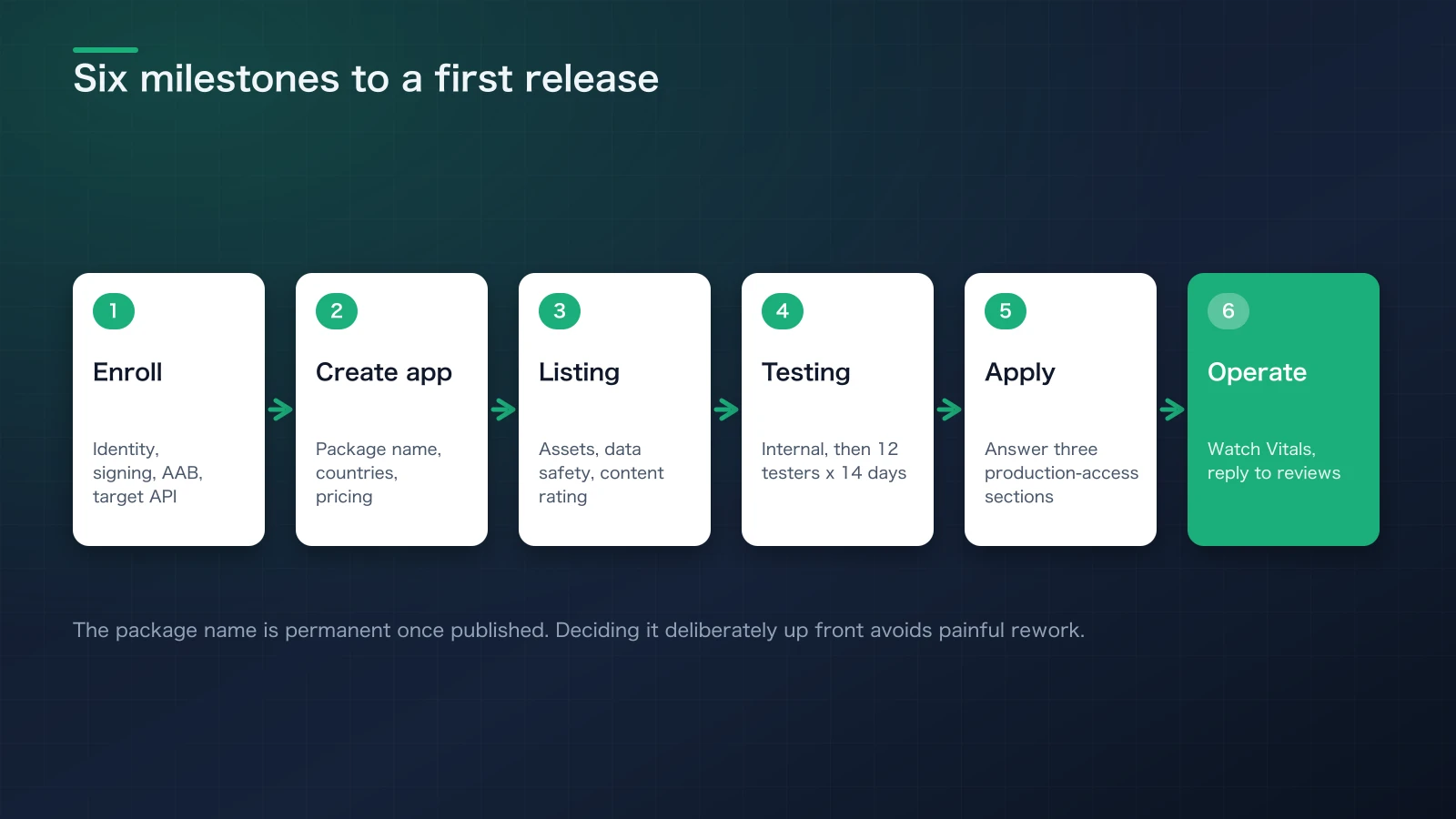
Figure 1: The path to launch breaks down into six milestones — none of them optional.
1. Developer Account and Technical Project Prep
1-1. Personal vs. Organization Accounts, and Identity Verification
- Google Play developer registration requires choosing personal or organization, then registering identity verification, contact details, and payment information.
- Personal accounts created on or after November 13, 2023 are subject to the closed-testing requirement described below (12 testers, 14 consecutive days). This is still true as of August 2026.
- Organization accounts may require legal information and, in some cases, business identity verification.
- Paid apps or in-app purchases require a payout account and tax information. You can defer monetization, but it's smart to stabilize app quality through testing first.
1-2. Package as an Android App Bundle (AAB), Not an APK
- Google Play requires new apps to publish in AAB format — a standalone APK cannot be published.
- In Android Studio, choose Build → Generate Signed Bundle / APK… → Android App Bundle to generate a signed .aab.
1-3. App Signing and Upload Keys
- New apps are required to use Play App Signing. Google holds your project's production signing key, while you sign your submitted AAB with an upload key.
- If you use services like Google Sign-In, don't forget to register the SHA-1 certificate (for OAuth clients, etc.). Keep the distinction between the upload key and the app signing key clear.
1-4. Target API Level (the Key 2026 Transition)
This is the biggest change from the 2025 version of this guide.
- As of August 2026, new submissions and updates require a minimum of API level 35 (Android 15).
- Starting August 31, 2026, both new apps and updates must target API level 36 (Android 16)[1] or higher. If you can't finish in time, you can request an extension to November 1, 2026 through the policy status page in Play Console.
- Existing apps must also maintain API 35+ to keep being served to new users on newer Android devices.
- Wear OS requires API 35+; Android TV, Android Automotive OS, and Android XR each have their own deadlines and API levels — check the latest table in Play Console Help if you target those platforms.
1-5. Release Build Basics
- Switch the build variant to
releaseand enable minification (R8) and resource shrinking. If you use obfuscation, upload mapping.txt to Play Console so crash reports remain readable. - Increment versionCode with every update; versionName is just for display. Across test and production tracks, the device receives whichever build has the highest versionCode among tracks the user is enrolled in.
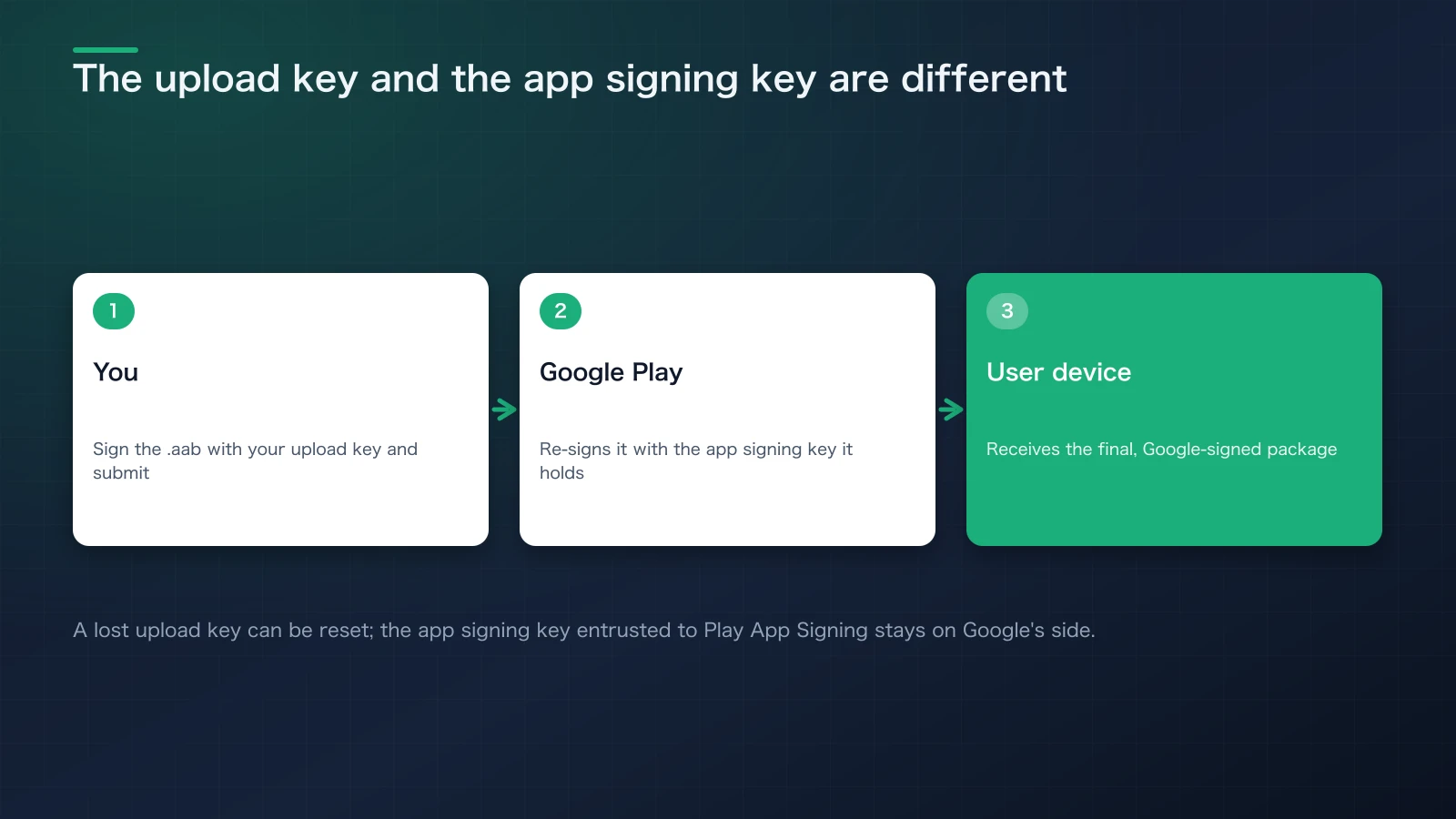
Figure 2: You sign your AAB with an upload key; Google re-signs the final distribution package with the production signing key.
2. Creating and Configuring the App in Play Console
2-1. Create the App
- From Play Console's Home → Create app, start a new listing.
- Set the default language and app name, and choose App/Game and Free/Paid (some of these can be changed later).
2-2. Countries/Regions and Pricing
- Choose which countries and regions to distribute to. Billing and age-restriction policies vary by country, so it's easier to start with your primary target markets.
2-3. Device Categories
- Phone/Tablet, Large screens (tablets/Chromebooks), Wear OS, and TV each have different distribution eligibility and screenshot requirements by form factor. The standard approach is to start with Phone and expand from there.
Quick summary: the console's basic settings are a "map of where you'll launch." Keep it simple at first — you can expand later.
3. Store Listing and Policy Declarations
3-1. Minimum Store Assets
- App icon: 512×512 (PNG, alpha allowed)
- Feature graphic: 1024×500 (PNG/JPEG)
- Screenshots: add separately for Phone/Tablet/Wear/TV. Large screens (tablets/Chromebooks) recommend/require at least 4 screenshots. Wear/TV require at least 1, plus additional assets like a TV banner.
- Keep copy short and specific (the first three lines matter most).
3-2. Data Safety
- Before launch, declare what data you collect, share, encrypt, and how it can be deleted — including the behavior of any third-party SDKs. A mismatch between your declaration and your actual implementation is a common cause of rejection.
3-3. Privacy Policy URL (Requirements in Detail)
- The URL must be accessible to anyone without login, always available, not geo-restricted, and a static page you can't silently edit. PDFs are explicitly disallowed.
- Example: host
/privacyon your own site (S3+CloudFront, GitHub Pages, static hosting, etc.) and reuse it across all your apps — much easier to maintain. Add app-specific differences as separate sections.
3-4. Target Audience and Content Rating
- Correctly answer both the Target audience & content and Content rating sections. If your app targets children under 13, compliance with the Families policy (e.g., self-certifying SDKs) is mandatory.
- Ratings are automatically assigned via the IARC system by regional bodies (PEGI/ESRB, etc.). Misrepresenting your app can result in removal.
3-5. App Content Declarations (Ads, Access Restrictions, Restricted Permissions)
- Accurately declare whether your app contains ads, has login or access restrictions, or uses restricted permissions like background location. These may require additional declaration forms or supporting documentation.
Quick summary: this is "legal, PR, and support" territory. Repeatedly check that what you declared matches what you actually implemented.
4. Running Tests: Types and Requirements (Critical for New Personal Accounts)
4-1. Types of Testing
- Internal testing: fastest distribution. Add up to 100 testers by email address — ideal for initial QA.
- Closed testing: manage testers via an email list or a Google Group. Better suited for larger-scale feedback collection.
- Open testing: makes a test build publicly available on Play — anyone can join. Available only after obtaining Production access.
4-2. The Mandatory Requirement for New Personal Accounts (12 Testers, 14 Days)
- Requirement: at least 12 testers must be opted in continuously for 14 days to your closed test.
- Key detail: the requirement centers on testers staying continuously opted in. There's no official documentation stating that a build update or minor store-copy tweak resets the counter. However, all 12 testers must overlap within the same 14-day window — if a tester opts out partway through and the count drops below 12, that continuity breaks (re-opting in restarts their streak, so watch for this).
- Open testing unlocks after this requirement is met — get closed testing solid first.
4-3. Practical Tips for Recruiting and Managing Testers
- Invitation flow: share your closed test's opt-in URL. Managing testers via a Google Group also works well (you get a listable roster).
- Communication: tell testers explicitly what to try, how to write reproduction steps, and how to reach you (email/form). Make use of Play's test feedback feature too.
- Running multiple tracks at once: you can run several closed tracks on the same app in parallel. Note that testers currently enrolled in internal testing cannot simultaneously receive builds from other tracks.
4-4. Common Pitfalls (Q&A)
- Q: If I swap builds partway through the 14 days, do I have to start over?
- Q: I met the requirements, but Google still asked for "more testing."
- Q: Can I put the same person in internal, closed, and open testing at once?
A: The official requirement is "opted in continuously for 14 days." There's no documented rule that swapping builds resets the count. The key is keeping testers from dropping out — clear notifications and instructions matter more than build cadence. A: Beyond tester count and continuity, Google also looks at tester engagement (whether the app was actually used). Summarize the feedback you received and the changes you made when you apply for production. A: Anyone currently enrolled in internal testing cannot receive builds from other tracks. Have them opt out of internal testing first if you want them in a closed track.
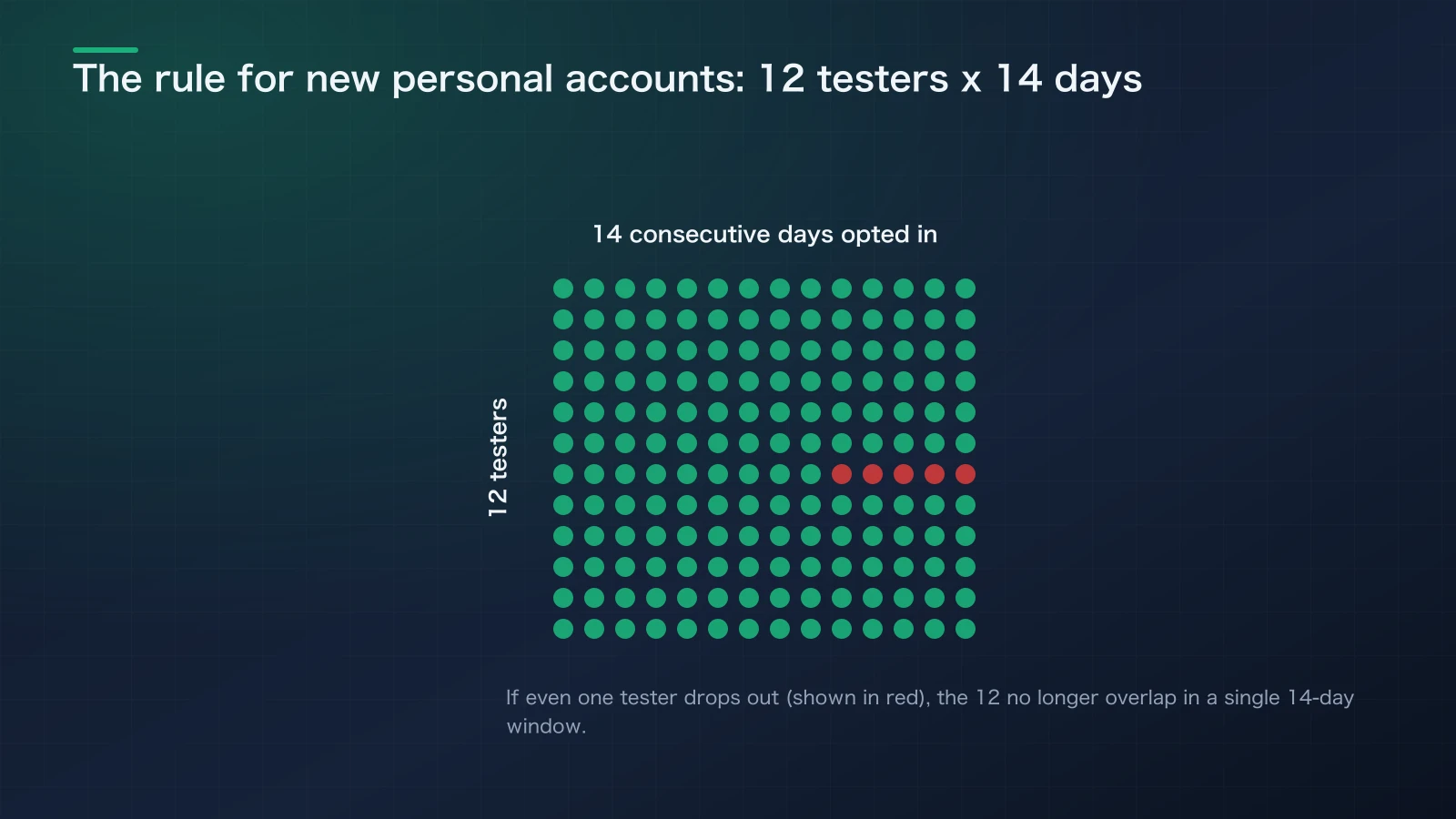
Figure 3: The requirement for new personal accounts is "12 testers, opted in continuously for 14 days." Even one dropout midway breaks the streak.
Quick summary: testing comes down to "count × continuity × engagement." Keep a record of how the app was actually used, not just the numbers.
5. From Review Application to Production Release
5-1. Applying for Production Access
- Once you've met the closed-testing requirement, apply from Dashboard → Apply for production. You'll answer three sections (Closed test, App overview, Production readiness).
- Describe concretely how easy tester recruitment was, how engaged testers were, what feedback you received, and how you acted on it. Note: leaving the form without saving discards your answers.
5-2. Review and Outcome
- Review typically completes within a few days (this varies). If something's missing, Google may ask you to continue testing (insufficient testers or engagement, for example).
- Once approved, both Production and Open testing unlock. Start with a staged rollout (e.g., 5% → 20% → 50% → 100%) and monitor quality metrics like crash rate and ANR.
5-3. Delivery Logic Basics
- Users receive the build with the highest versionCode among the tracks they're enrolled in. Remember that internal testers only receive internal builds.
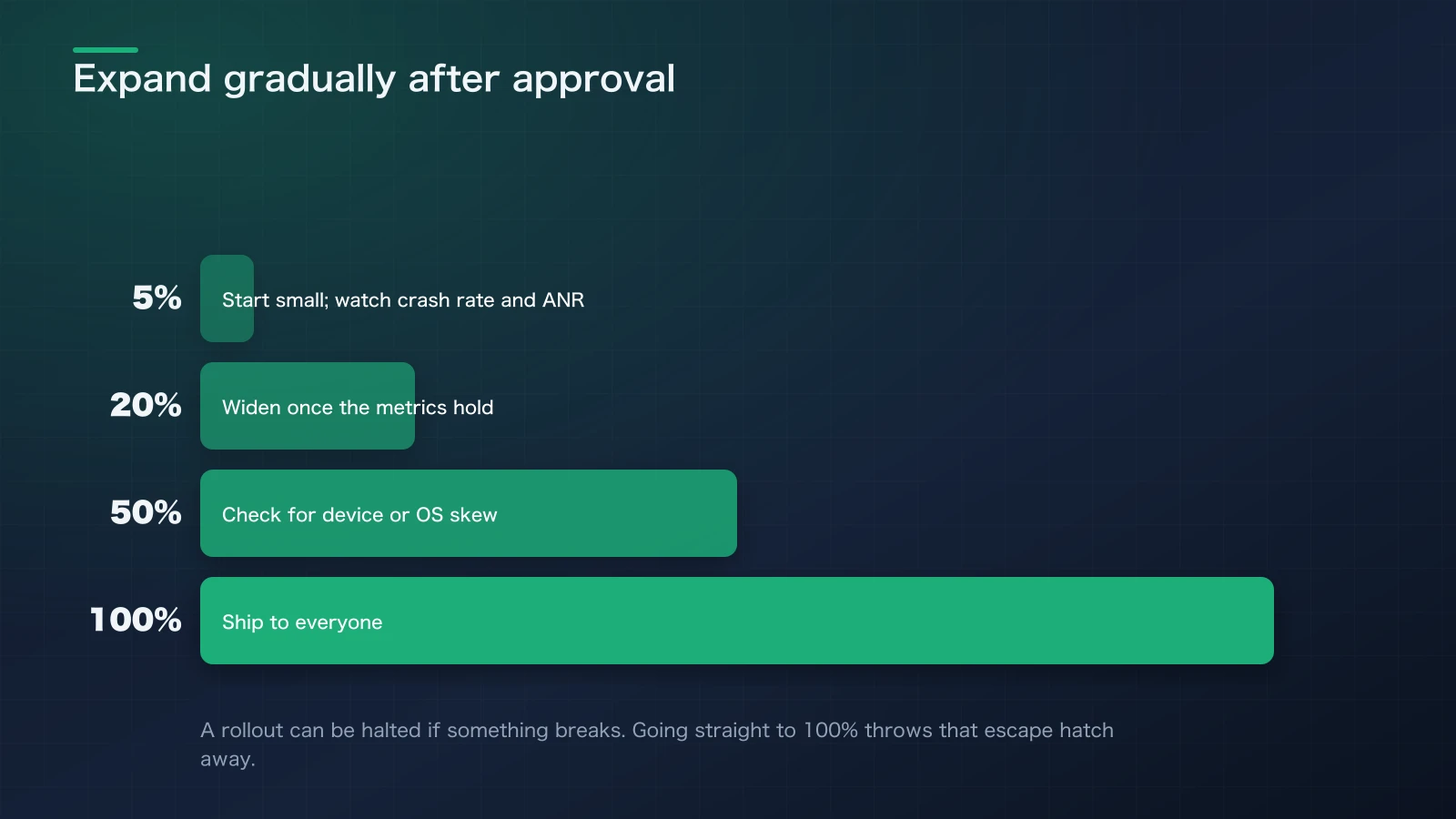
Figure 4: Even after approval, don't jump straight to 100% — expand in stages (5% → 20% → 50% → 100%) while watching quality metrics.
Quick summary: your application is essentially "a report." Demonstrating both quantity and quality (how you handled feedback) is the fastest path to approval.
6. Post-Launch Operations
6-1. Android Vitals and Pre-Launch Reports
- Play's Pre-launch report (automated testing) catches launch issues, layout breakage, and permission dialog problems early. After launch, monitor crashes and ANRs continuously via Android Vitals.
6-2. Reviews and User Support
- Aim to reply to reviews within 24–72 hours. Feed recurring issues into your FAQ or in-app help, and keep refining your store description.
6-3. Update Cadence
- Establish a rhythm: validate small fixes in closed testing first, then ship via staged rollout to production.
- Handle the annual target API bump (API 36 starting August 31, 2026) well ahead of the deadline.
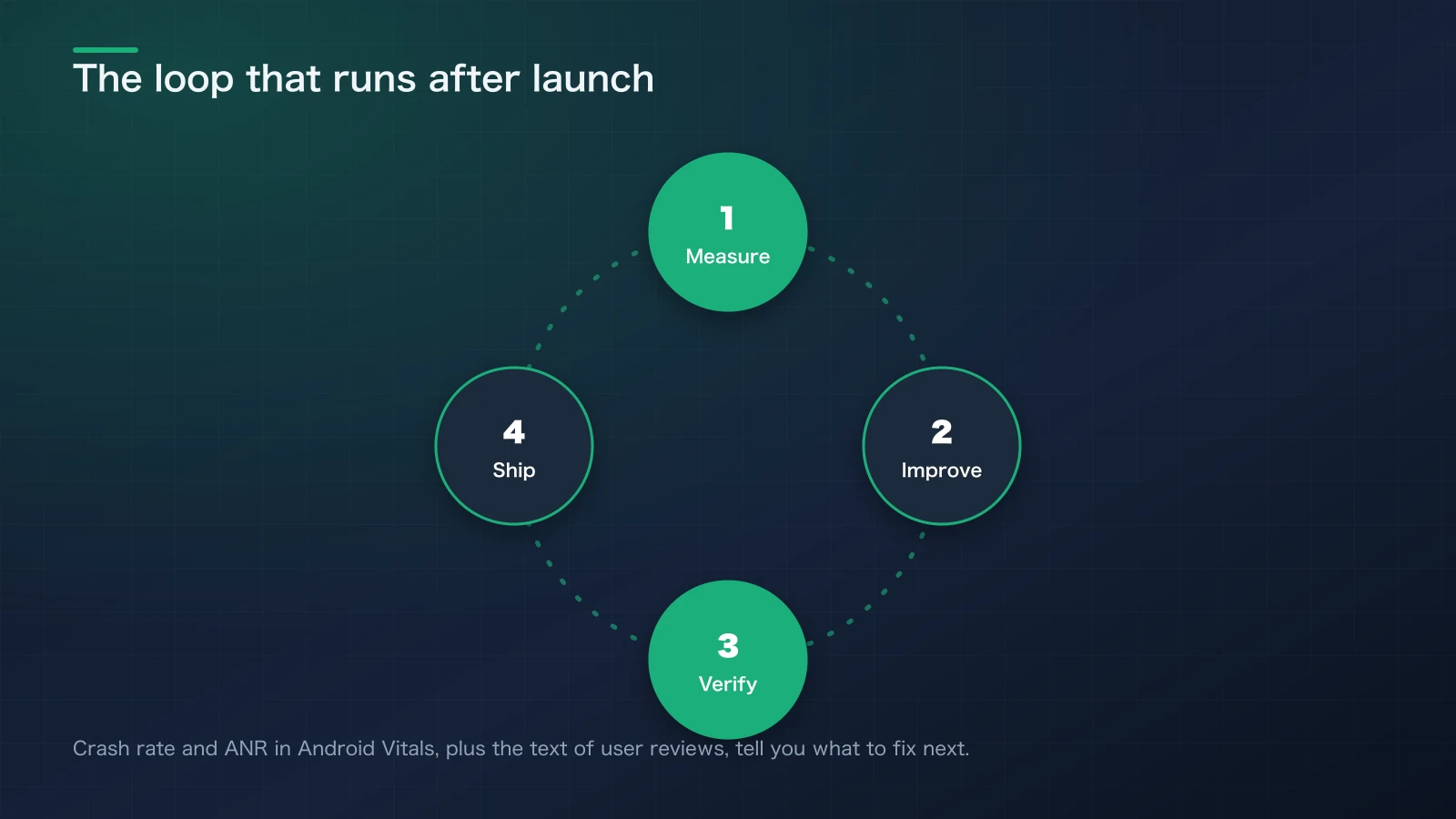
Figure 5: Repeating the "measure → improve → verify → ship" cycle after launch is what extends an app's lifespan.
Quick summary: post-launch life is a "measure → improve → verify → ship" cycle. Operational stamina extends an app's lifespan.
Appendix: Checklist and Practical Tips
A Shared Privacy Policy Page Saves You Effort
Rather than rewriting your privacy policy for every app, it's more efficient to maintain one shared page with a common skeleton. For example, structure example.com/privacy with these sections:
- Data collected (contact info, usage data, advertising ID, etc.)
- Purpose (feature delivery, analytics, advertising)
- Whether it's shared (third-party SDKs, anonymization)
- Encryption, retention period, and deletion method (in-app or by request)
- Contact (email)
- App-specific differences, added as their own section
Key point: keep it as an always-accessible, non-editable static page. PDFs and geo-restrictions are both disallowed.
A Ready-to-Use Checklist
Preparation
- [ ] Developer account registered and identity verified (personal/organization)
- [ ] Package name finalized (cannot be changed after publishing)
- [ ] Meets target API 35+, and API 36 (Android 16) starting August 31, 2026
- [ ] Signing: registered with Play App Signing, upload key managed
- [ ] Release build configured (
minifyEnabled true, unused resources removed) - [ ] AAB generated (Generate Signed Bundle)
Store and Policy
- [ ] App icon 512×512, feature graphic 1024×500
- [ ] Screenshots (Phone required; Large screens need at least 4; Wear/TV need at least 1 plus a TV banner)
- [ ] Data safety declared (including SDKs)
- [ ] Privacy policy URL (always available, static, not a PDF)
- [ ] Target audience and content rating answered (IARC)
- [ ] Ads, access restrictions, and restricted permissions declared
Testing
- [ ] Internal testing (up to 100 people) for initial QA
- [ ] Closed testing started (opt-in URL / Google Group)
- [ ] Monitoring for 12 testers opted in continuously for 14 days
- [ ] Feedback collected, summarized, and acted on
Application and Rollout
- [ ] Answered Apply for production from the Dashboard (3 sections)
- [ ] Staged rollout after approval (e.g., 5% → 20% → 50% → 100%)
- [ ] Monitoring Pre-launch report / Android Vitals
- [ ] Replying to reviews, updating FAQ
Building a Release AAB in Android Studio (Practical Steps)
- Build configuration: in
build.gradle(app), setminifyEnabled trueandshrinkResources trueas needed. IncrementversionCodeand updateversionName. - Signing configuration: assuming you're already registered with Play App Signing, prepare your upload key's keystore/alias.
- Generate the AAB: Android Studio → Build → Generate Signed Bundle / APK… → Android App Bundle → Next → select your keystore/alias, choose Release → Finish.
- Upload: Play Console → Testing (Internal/Closed) → upload the .aab → attach release notes → save/publish.
- Upload mapping.txt (if using obfuscation): upload to Deobfuscation files so crash analysis in Android Vitals stays readable.
Common Gotchas, Summarized
- My APK upload was rejected → new apps require AAB, full stop.
- I want to use open testing right away → only available after Production access is granted. Start with closed testing at 12 testers × 14 days.
- I'm worried about the 14-day count resetting → the condition is "12 testers overlapping within the same 14-day window." Focus on continuity, not whether you shipped a new build.
- Google asked for "more testing" → show engagement, not just headcount and continuity. Organize feature-level usage, known issues, and improvement history in your application.
- Where should the privacy policy live? → a static page on your own site is easiest to maintain. PDFs, login walls, and geo-restrictions are all disallowed.
- I forgot about the target API bump → the requirement rises annually. API 36 starting August 31, 2026. Always confirm
targetSdkbefore building.
Conclusion
The barrier to a first release is really "the sheer amount of information." Break it into steps, though, and you'll always make progress. Turn this guide's checklist into concrete tasks, and satisfy "count × continuity × engagement" in closed testing. Clear that bar, and the door to Production access opens. After launch, keep polishing quality using Android Vitals and user feedback.
The same ground is covered for iOS in Publishing Your First iOS App to the App Store. The two platforms are asymmetric — iOS front-loads the cost with an annual fee and a Mac, while Android back-loads it with the 12-testers-for-14-days requirement — so if you're shipping to both, reading them together makes the sequencing easier to plan.
References
- [1]Play Console ヘルプ, Target API level requirements for Google Play apps. ↩
- [2]Android Developers, Meet Google Play's target API level requirement. ↩
- [3]Android Developers, About Android App Bundles. ↩

NEW NOVEL 2026/08/01
Clouded Glass
Polishing is not about force.
Volume two of The World Became Slightly Farther Away.Five stories that can also be read as a starting point.
View on Amazon
Jijoden.com
Your life is worth writing.
There is a truer self you can tell only to AI.Gather fragments of memory into a single story.
Take a LookRelated Articles
Silver Week Reshapes AI: GPT-6 Astra, Sol and Luna vs Claude Fable, Opus and Sonnet
A six-model comparison of launch strategy, intelligence, API prices, measured task costs, caching and access: GPT-6 Astra, Sol and Luna versus Claude Fable 5.1, Opus 5.5 and Sonnet 5.
What Can You Share with AI? Approval Criteria for Enterprise Code and Customer Logs
Authorize enterprise AI use with six repository acceptance criteria, log-sanitization examples, contract decisions and a reusable approval template. Primary sources checked September 19, 2026 distinguish permitted work, prohibited transfers and case-specific review.
GPT-6 Astra Arrives: What Changes When You Put It to Work in Codex?
Our first article produced with Astra examines GPT-6 in Codex, its differences from GPT-5.6, comparisons with Fable 5.1 and Opus 5, ARC-AGI-3 testing conditions, international reactions, and the AGI debate. Sources checked September 6, 2026.
Building nagara: A Voice Player for AI Replies, Articles, and Novels
I wanted long Claude Code replies to be easier to listen to. This engineering story follows nagara, an open-source macOS player built with Swift and AivisSpeech, through quiet collection, sentence navigation, and pitch-preserving playback speed.
You Don’t Have to Abandon Claude Desktop: The Practical Case for Claude Code CLI, Subagents, and Agent Teams
Subagents work in Claude Desktop's Code tab, so what still makes the CLI different? This practical guide explains CLI-only Agent Teams, Unix pipes, shell-environment continuity, which model and effort level each teammate and Subagent inherits, local-only configuration, Git exclusions, and copy-ready reviewer and log-watcher agents for ordinary Claude subscribers.