
Table of Contents
Introduction
Our article on Mac's caffeinate and say commands was well received, so this time we're covering the Windows side: genuinely useful features that are built into Windows or officially provided free by Microsoft, yet surprisingly few people know about. No sketchy third-party utilities here — everything below is made or distributed by Microsoft itself. This guide assumes Windows 11 (version 25H2) as of August 2026.
1. PowerToys — Microsoft's Own "Hidden Toolbox"
1-1. What Is PowerToys?
PowerToys is an open-source utility collection officially developed and published by Microsoft. It doesn't ship pre-installed with Windows 11, which is exactly why it stays under the radar — but anyone can install it for free with one line, winget install --id Microsoft.PowerToys, or via the Microsoft Store.[1] As of mid-2026 it's on the 0.9x–0.10x version range, with new features shipping continuously.
1-2. Standout Modules
- FancyZones: divide your screen into custom zones and snap windows into them by dragging. Especially effective with external monitors.
- PowerRename: bulk-rename files using regular expressions — handy for cleaning up huge batches of photos or documents.
- Advanced Paste: paste clipboard content transformed as plain text, Markdown, and more. There's also an AI-powered format transform, but that's an optional feature requiring your own Azure OpenAI API key.
- PowerToys Run (
Alt+Space): a Spotlight-style launcher that also does quick calculations and file search. - Text Extractor (
Win+Shift+T): OCRs text from anywhere on screen — great for copying captions from a video or text baked into an image. - Peek (
Ctrl+Space): a Quick Look-style preview without opening the file.
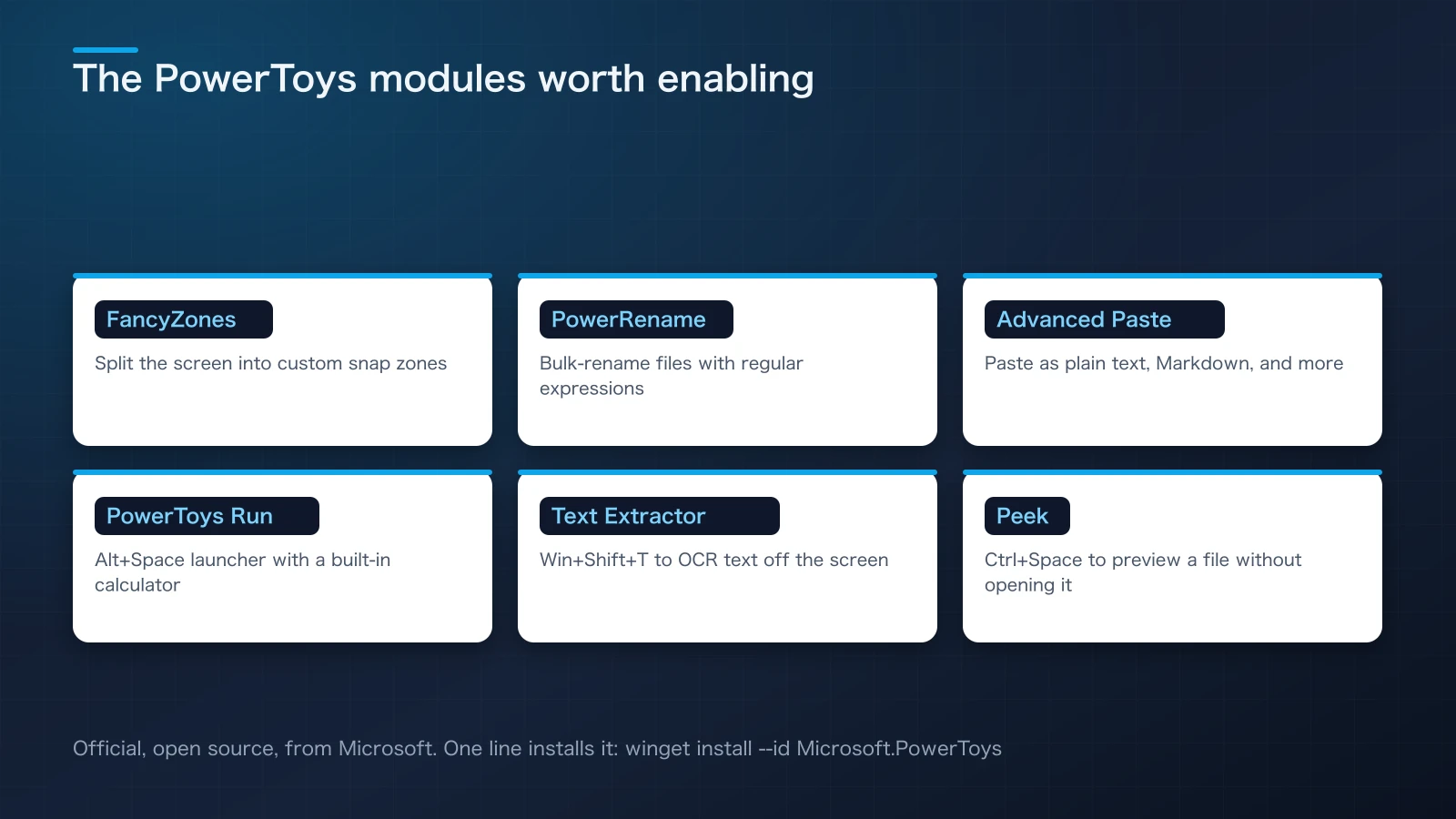
Figure 1: PowerToys isn't one app — it's a collection of purpose-built modules you can enable individually.
2. winget — The Built-In Package Manager
2-1. The End of "Search, Download, Run the Installer"
Windows Package Manager (winget) is a command-line package manager built into current Windows 11.[2] It collapses the usual "search in a browser → find the official site → download the installer → run it" routine into a single terminal command.
winget install --id Microsoft.PowerToys --source winget
winget install --id Google.Chrome
winget install --id 7zip.7zip
2-2. Common Operations
# Check for and upgrade installed apps
winget upgrade

# Search before installing
winget search "visual studio code"

# Upgrade everything at once
winget upgrade --all
When setting up a new PC, list the app IDs you need in a text file and use winget import to install them all at once. It plays a similar role to Homebrew on macOS, but its biggest advantage is that it's already on Windows — no extra install required.
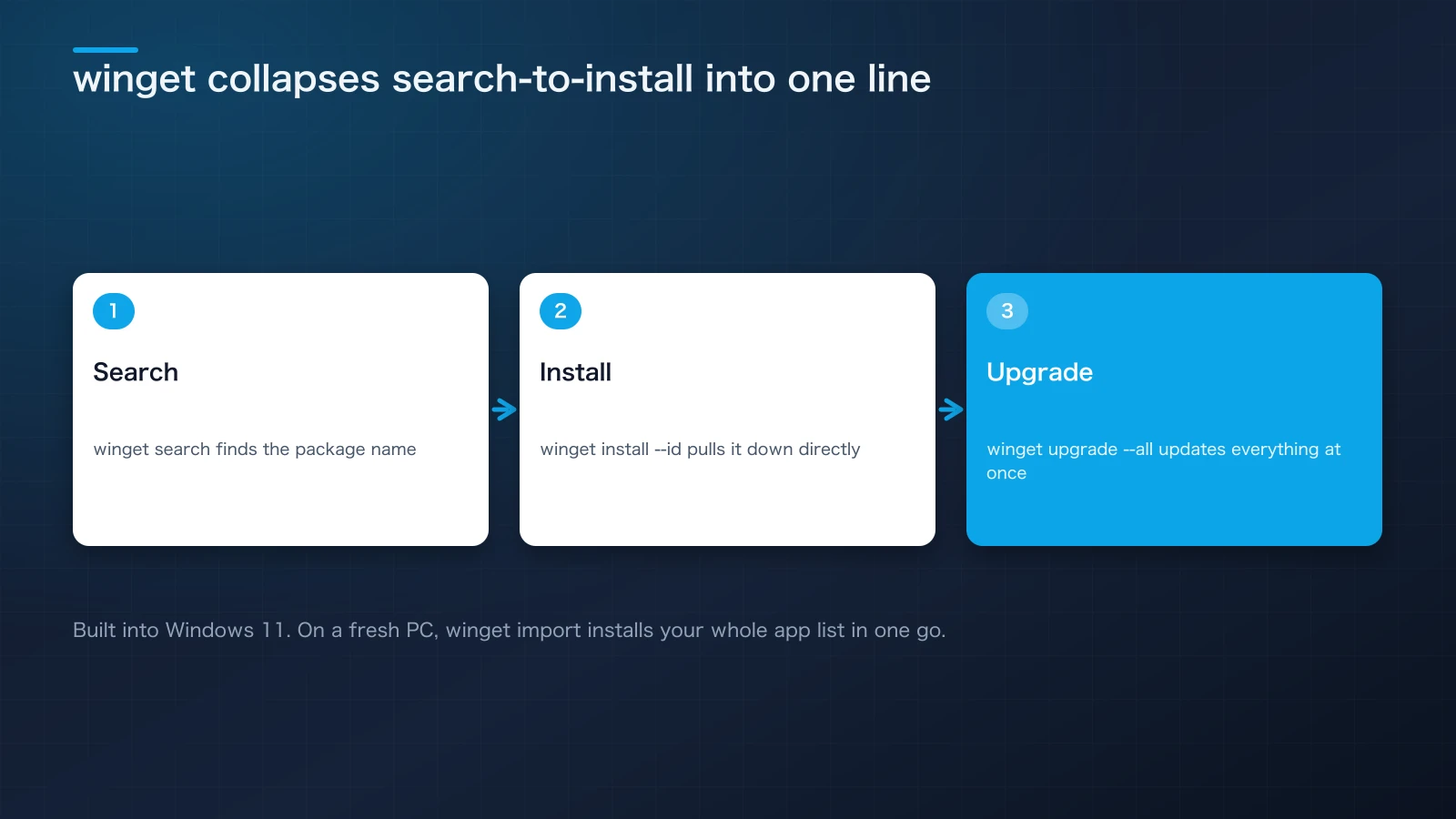
Figure 2: winget wraps search, install, and upgrade into a single terminal command — and it's built in.
3. System Tricks Worth Knowing
3-1. God Mode — a Folder That Collects Every Setting in One Place
Create a new folder on your desktop and rename it to the following string. The icon changes, and the folder now lists roughly 200 Windows settings and Control Panel items in a single view.
GodMode.{ED7BA470-8E54-465E-825C-99712043E01C}
It drastically cuts down the time spent hunting for "where was that setting again?" It's just a collection of shortcuts, so it makes no system changes and is completely safe.
3-2. Problem Steps Recorder (psr.exe) — Automatic Step-by-Step Documentation
Press Win + R, type psr, and run it. This is a standard tool that's quietly survived since the Windows Vista era: it automatically records your steps as a screenshot-annotated report (MHTML).
- Start recording → perform the steps → stop recording, and a report with a screenshot and annotation for every click is generated automatically.
- Useful when you need to tell a family member or coworker exactly "I did this, and then this error appeared" — or when you want to save a procedure for yourself.
- It's the perfect middle ground when a screen recording feels like overkill but plain text alone won't get the point across.
3-3. Task Manager's "Efficiency Mode"
Right-click a heavy background process in Task Manager and choose Efficiency mode. This lowers that process's CPU priority and scheduling so your foreground work takes precedence. It's a way to calm down a heavy app you tend to leave running in the background, without force-quitting it entirely.
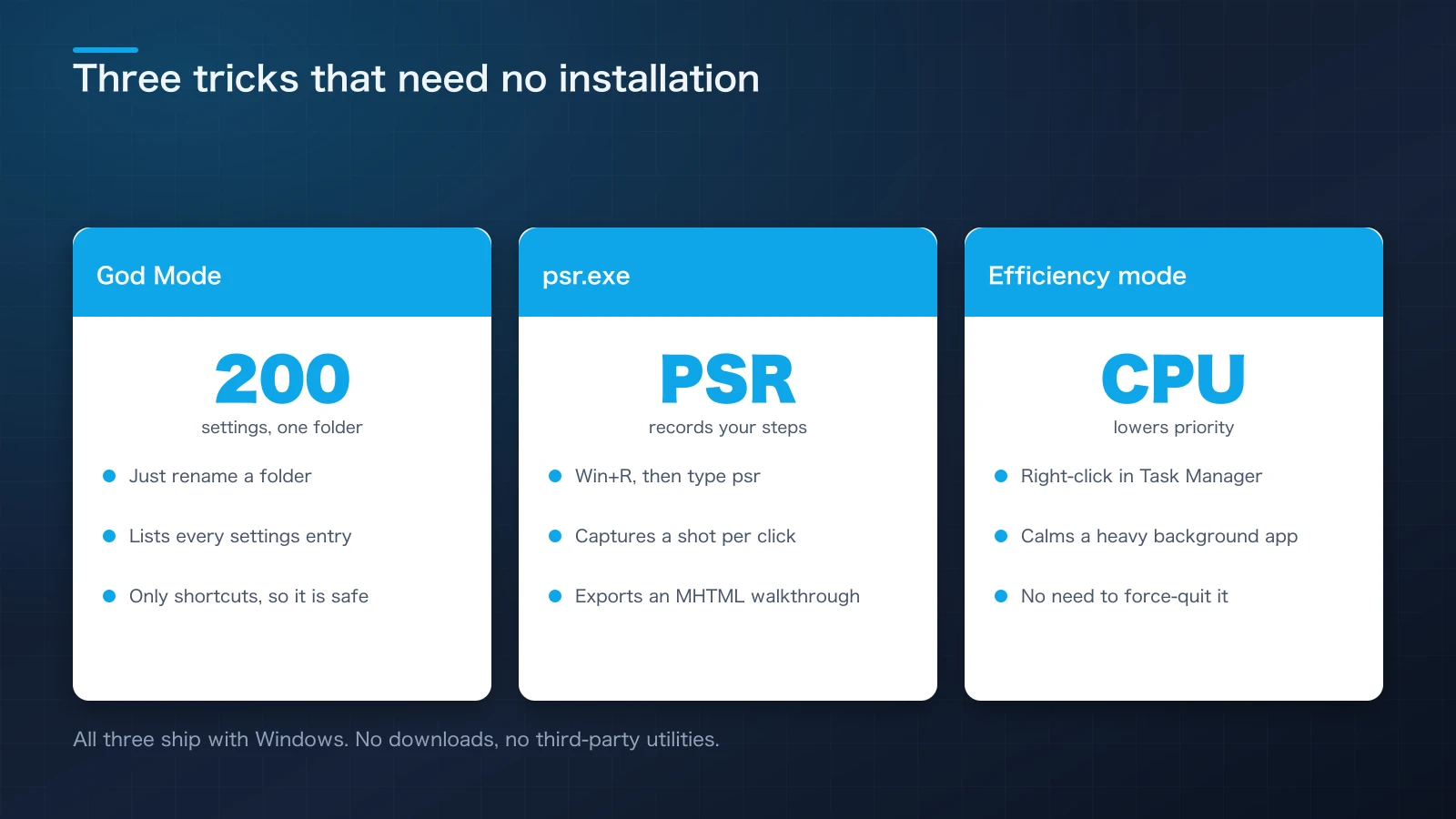
Figure 3: God Mode, Problem Steps Recorder, and Efficiency mode all ship with Windows — nothing extra to install.
4. Streamlining Clipboard Use and Text Input
4-1. Clipboard History (Win + V)
Lets you reach back through your copy history rather than just the last thing you copied. Once enabled in Settings, you can pin frequently reused snippets — signatures, boilerplate phrases, commands you type often — so they're always one keystroke away.
4-2. The Emoji and Symbol Panel (Win + . or Win + ;)
This panel handles more than emoji — emoticons, special symbols, and GIFs (availability varies somewhat by IME/region configuration) are all accessible here too.
4-3. Combining It With PowerToys' Advanced Paste
Pick a source from clipboard history, then use Advanced Paste's "paste as plain text" to strip the extra formatting that tends to tag along when you copy from a web page — all in one step.
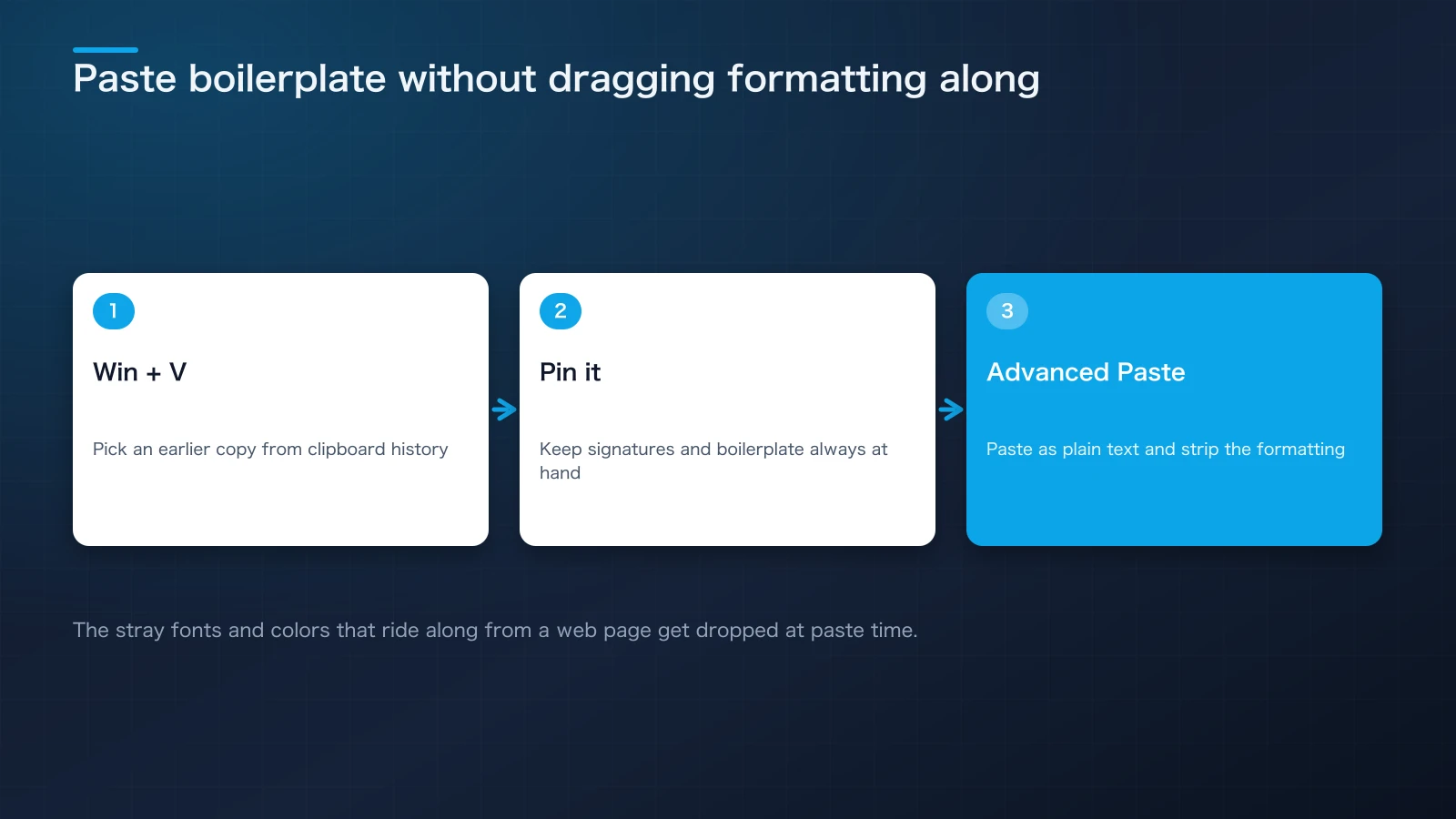
Figure 4: Combining clipboard history with Advanced Paste lets you paste boilerplate text without dragging along unwanted formatting.
5. Accessibility and Power-Saving Features Are Genuinely Useful Too
- Live Captions: an accessibility feature that adds real-time captions to any audio playing on the system. Useful when meeting audio is hard to make out, or when watching a video somewhere you can't turn the sound on.
- Focus sessions: temporarily suppress notifications and pair a timer with background music (through supported apps) to help you concentrate.
- Storage Sense: automatically cleans up temporary files and Recycle Bin contents. Turn it on and you can mostly stop thinking about disk space management.
Quick summary: features built for accessibility often turn out to be broadly useful for everyone. It's worth a look through the accessibility settings at least once.
6. A Handy Shortcut Reference
| Shortcut | Effect |
|---|---|
| Win + V | Open clipboard history |
| Win + Shift + S | Region-select screenshot (Snipping Tool) |
| Win + . | Open the emoji/symbol panel |
| Win + Shift + Arrow key | Move the window to an adjacent monitor |
| Win + Tab | Open Task View (virtual desktops) |
| Ctrl + Shift + Esc | Launch Task Manager directly |
| Alt + Space (PowerToys Run) | Open the launcher (once PowerToys is installed) |
Conclusion
Every feature here is either officially made by Microsoft or built into Windows.
- PowerToys: a collection of purpose-built tools — FancyZones, PowerRename, Advanced Paste, Text Extractor, and more
- winget: the built-in package manager that turns search-to-install into a single terminal command
- God Mode / psr.exe / Efficiency mode: system tricks that need no extra installation
- Clipboard history × Advanced Paste: faster boilerplate pasting with formatting stripped out
- Live Captions and Storage Sense: accessibility and power-saving features that are genuinely useful day to day
Every one of these is free to try today. Pick whichever catches your eye and give it a shot.
References
- [1]Microsoft Learn, Microsoft PowerToys. ↩
- [2]Microsoft Learn, Use the winget tool to install and manage applications. ↩

NEW NOVEL 2026/08/01
Clouded Glass
Polishing is not about force.
Volume two of The World Became Slightly Farther Away.Five stories that can also be read as a starting point.
View on Amazon
Jijoden.com
Your life is worth writing.
There is a truer self you can tell only to AI.Gather fragments of memory into a single story.
Take a LookRelated Articles
Keep Your Mac Awake, Then Have It Tell You It Finished: caffeinate and say (2026 Edition)
A refreshed guide to Mac's built-in caffeinate and say commands, with a full options cheat sheet — from preventing sleep to text-to-speech and scripting them into your automation workflow.
Windows vs Mac: Complete Guide to Differences, History, and Market Share
A beginner-friendly guide to the differences between Windows and Mac, covering historical background, current market share, and user demographics.
Silver Week Reshapes AI: GPT-6 Astra, Sol and Luna vs Claude Fable, Opus and Sonnet
A six-model comparison of launch strategy, intelligence, API prices, measured task costs, caching and access: GPT-6 Astra, Sol and Luna versus Claude Fable 5.1, Opus 5.5 and Sonnet 5.
What Can You Share with AI? Approval Criteria for Enterprise Code and Customer Logs
Authorize enterprise AI use with six repository acceptance criteria, log-sanitization examples, contract decisions and a reusable approval template. Primary sources checked September 19, 2026 distinguish permitted work, prohibited transfers and case-specific review.
GPT-6 Astra Arrives: What Changes When You Put It to Work in Codex?
Our first article produced with Astra examines GPT-6 in Codex, its differences from GPT-5.6, comparisons with Fable 5.1 and Opus 5, ARC-AGI-3 testing conditions, international reactions, and the AGI debate. Sources checked September 6, 2026.