
Table of Contents
Introduction
Hello everyone! Today I want to introduce two "hidden gem" commands that make your Mac more convenient — and a little more fun to use. The first is caffeinate. The second is say.
Both ship standard with current macOS, including macOS Tahoe (26) — no extra installs, no menu-bar utility app required. Learning these two commands alone removes a surprising amount of everyday friction.
1. caffeinate — The Magic That Keeps Your Mac Awake
1-1. Purpose and Function
Mac automatically enters sleep mode after a period of inactivity — great for battery life, but inconvenient when you're:
- Running a long download or build
- Executing a server process or batch script
- Displaying slides during a presentation or meeting
- Streaming video or signage on an external display
That's where caffeinate comes in.[1] True to its name, it keeps your Mac awake for as long as the conditions you specify remain true.
1-2. Basic Usage
Open Terminal and type:
caffeinate
That's it — your Mac won't sleep until you close the terminal or press Ctrl + C. Called with no arguments, caffeinate defaults to behavior equivalent to -i, preventing idle system sleep.
1-3. Mastering the Options
caffeinate has several flags you can combine to control precisely what — and for how long — stays awake.
| Option | Effect |
|---|---|
-d | Prevents the display from sleeping |
-i | Prevents idle system sleep (default behavior) |
-m | Prevents idle disk sleep |
-s | Prevents system sleep (valid only while on AC power) |
-u | Declares the user is active and wakes the display |
-t <seconds> | Keeps the assertion active for the given number of seconds |
-w <PID> | Waits until the process with the given PID exits |
Some common combinations:
- Prevent sleep for just 30 minutes
caffeinate -u -t 1800
-t takes seconds (1800 seconds = 30 minutes).
- Prevent sleep only while a specific command runs
caffeinate -s curl -O https://example.com/bigfile.zip
Once curl finishes, sleep is automatically re-allowed. Because it wraps a process, this pattern works equally well for long builds or rsync transfers.
- Wait for an already-running process to finish
caffeinate -w 1234
Prevents sleep until the process with PID 1234 exits — handy when pairing with a heavy job you already launched in the background.
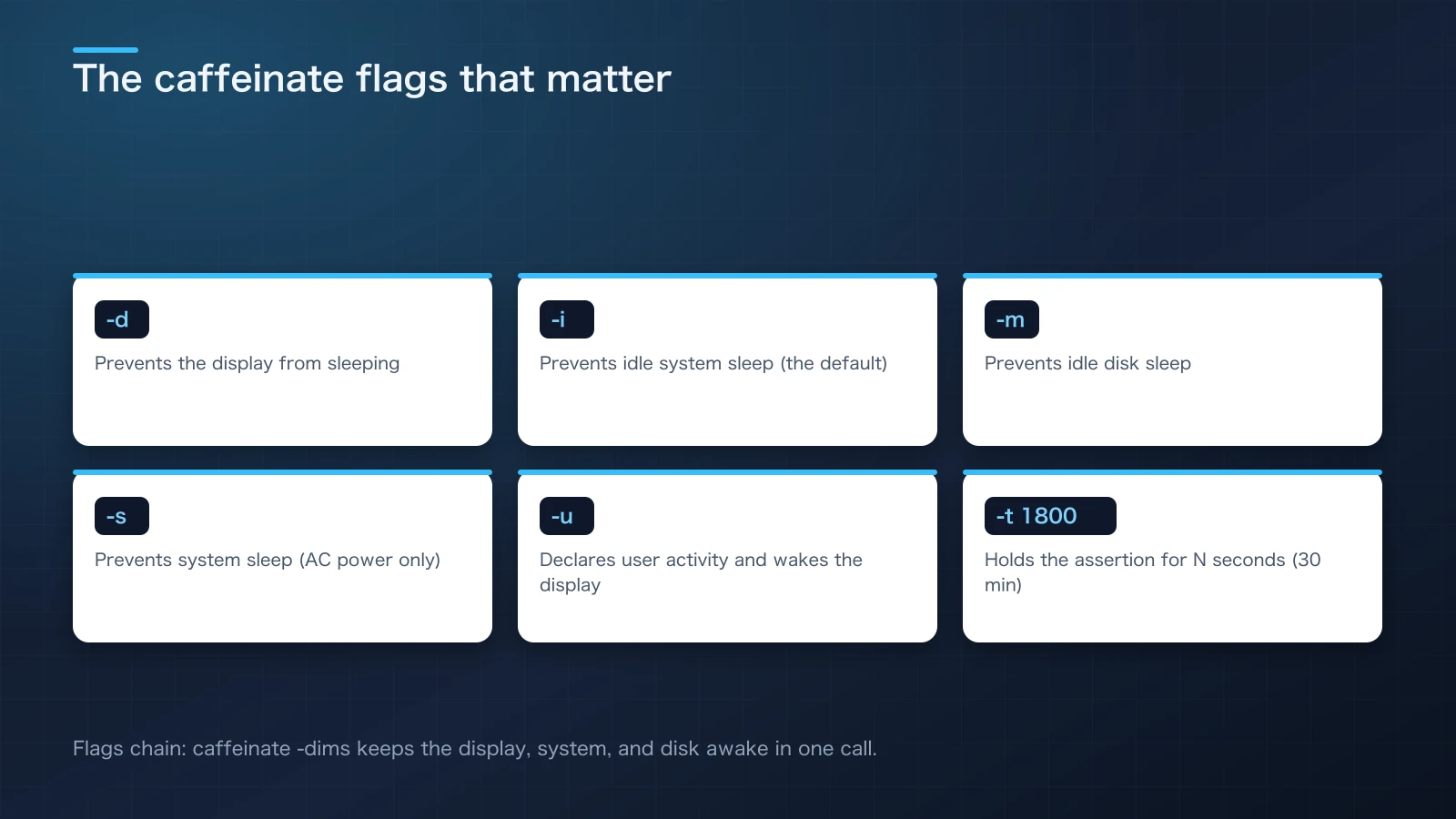
Figure 1: caffeinate's core flags at a glance — pick the display, system, or disk layer you want to keep awake.
1-4. When to Use It
- Running large overnight downloads or backups
- Keeping a Zoom, Google Meet, or Teams call visible without the screen dimming
- Looping slides or video on an external display
- Running CI builds or long npm/yarn tasks locally on your Mac
It's a small but powerful ally against the classic "oops, my Mac fell asleep" moment.
2. say — Let Your Mac Talk
2-1. Purpose and Function
Next up is the say command[2] — it literally makes your Mac talk. Originally part of macOS's accessibility features for visually impaired users, it also doubles as a fun tool for learning and for scripted notifications.
2-2. Basic Usage
Try this in Terminal:
say "Hello, World!"
Your Mac speaks the phrase aloud. It handles Japanese just as naturally:
say "おはようございます。今日も元気にいきましょう。"
2-3. Changing Voices and Saving to a File
You can add voices under System Settings → Accessibility → Spoken Content. List the voices already installed with say -v ?.
say -v Kyoko "おはよう"
say -v Samantha "Good morning"
say -v "?"
Adjust speaking rate (words per minute) with -r:
say -r 220 "This reads a little faster than normal"
You can also save speech to a file — and here's a correction worth making explicit: say -o writes directly to AIFF, CAF, m4af, or WAVE — it does not support direct MP3 output. If you need MP3, export to one of those formats first, then convert with afconvert or ffmpeg.
# Writes AIFF (the default)
say "This is a test recording" -o test.aiff

# Explicit format (m4af, caff, WAVE, etc. are also valid)
say "This is a test recording" -o test.m4a --file-format=m4af

# List every writable format on your system
say -o /dev/null --file-format="?" "list"
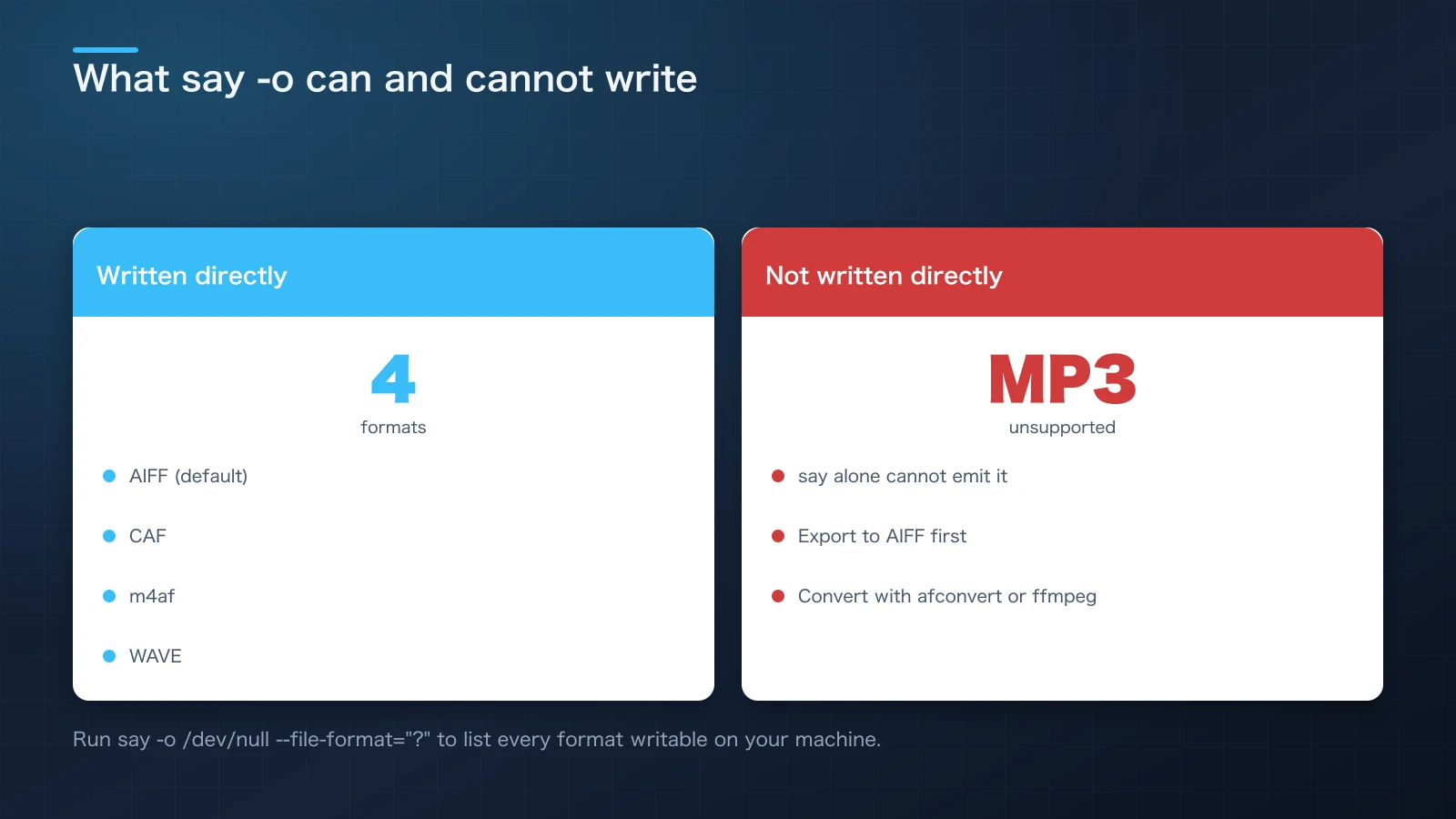
Figure 2: say handles both Japanese and English speech. Output files are AIFF/CAF/m4af/WAVE — converting to MP3 requires an extra step.
2-4. When to Use It
- Language learning (hear English pronunciation read aloud)
- Narration-style sound effects during a presentation
- A spoken notification when a long-running task finishes
- A quick sanity check for read-aloud content when a screen reader isn't available
Add say "Backup complete" to the end of an automated job, and it becomes a genuinely useful voice notification.
3. Advanced: Combining caffeinate and say
3-1. Completion Notifications for Long Jobs
Combine the two and you get an automation that "stays awake while working, and tells you out loud when it's done."
caffeinate -s ./long_process.sh && say "Processing complete"
caffeinate -sprevents sleepsayannounces completion by voice
It becomes a genuine "work buddy."
3-2. Wiring It Into a Shell Script
Add this pattern to your build or test wrapper scripts so you notice completion even when you've stepped away from the screen.
#!/bin/bash
set -e
caffeinate -dims &
CAFFEINATE_PID=$!

npm run build
npm test

kill "$CAFFEINATE_PID" 2>/dev/null
say "Build and tests are complete"
caffeinate -dims chains flags together to block display, system, and disk idle sleep at once. It runs in the background and gets killed once the work finishes.
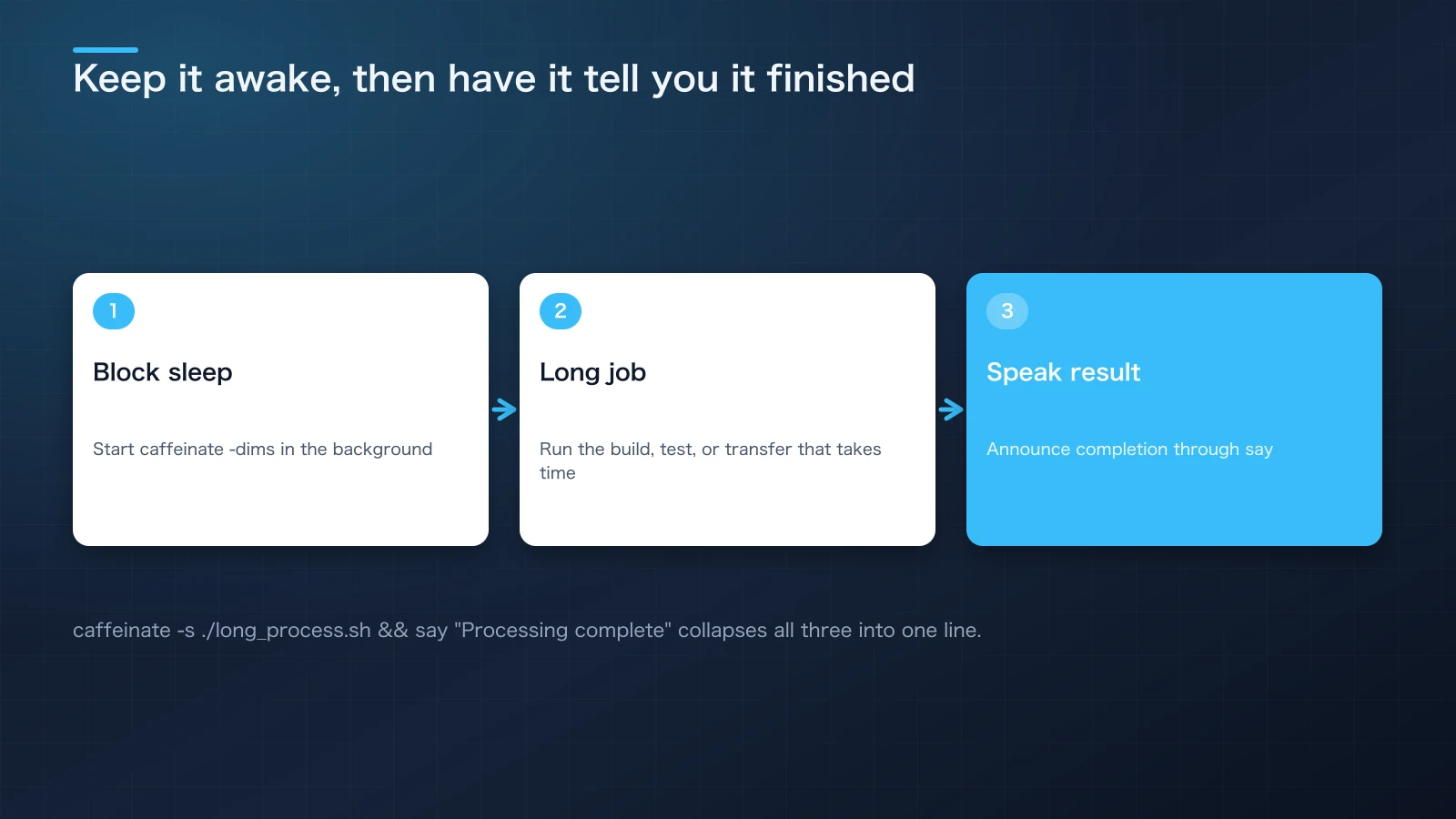
Figure 3: caffeinate blocks sleep, then say announces completion by voice — together they form a reliable work buddy.
4. A Few More Built-In Commands Worth Knowing
Beyond caffeinate and say, macOS ships with a handful of other commands that are easy to miss but genuinely useful alongside them.
pbcopy/pbpaste: Pipe standard input/output to and from the clipboard.cat file.txt | pbcopycopies a file's contents directly.open -a "AppName": Open any app, file, or URL from Terminal.open .to reveal the current directory in Finder is a classic.screencapture -T 5 shot.png: Takes a screenshot after a 5-second delay. Add-ifor interactive selection or-cto copy straight to the clipboard.shortcuts run "Shortcut Name": Run a saved Shortcuts (the successor to Automator) workflow with a single line from Terminal.
Quick summary: knowing caffeinate, say, pbcopy/pbpaste, open, screencapture, and shortcuts run together removes a lot of situations where you'd otherwise reach for the mouse.
Conclusion
Today we covered a few genuinely useful commands that ship standard with Mac but are surprisingly unknown.
- caffeinate: Keeps your Mac awake — great for long tasks and meetings
- say: Makes your Mac talk — useful for learning, notifications, and presentation flair
- Combining both: Sleep prevention plus a spoken completion notice makes a solid "work buddy"
- Neighboring commands:
pbcopy/open/screencapture/shortcuts runround out the toolkit
Every one of these is a small trick that makes daily life on the Mac a bit smoother. Open Terminal and give them a try.
References

NEW NOVEL 2026/08/01
Clouded Glass
Polishing is not about force.
Volume two of The World Became Slightly Farther Away.Five stories that can also be read as a starting point.
View on Amazon
Jijoden.com
Your life is worth writing.
There is a truer self you can tell only to AI.Gather fragments of memory into a single story.
Take a LookRelated Articles
Windows Features Already on Your PC: PowerToys, winget, and God Mode (2026 Edition)
PowerToys, winget, God Mode, Problem Steps Recorder, Efficiency Mode, and more — a practical tour of genuinely useful Windows 11 features that are built in or officially free from Microsoft, yet surprisingly few people know about.
Windows vs Mac: Complete Guide to Differences, History, and Market Share
A beginner-friendly guide to the differences between Windows and Mac, covering historical background, current market share, and user demographics.
Silver Week Reshapes AI: GPT-6 Astra, Sol and Luna vs Claude Fable, Opus and Sonnet
A six-model comparison of launch strategy, intelligence, API prices, measured task costs, caching and access: GPT-6 Astra, Sol and Luna versus Claude Fable 5.1, Opus 5.5 and Sonnet 5.
What Can You Share with AI? Approval Criteria for Enterprise Code and Customer Logs
Authorize enterprise AI use with six repository acceptance criteria, log-sanitization examples, contract decisions and a reusable approval template. Primary sources checked September 19, 2026 distinguish permitted work, prohibited transfers and case-specific review.
GPT-6 Astra Arrives: What Changes When You Put It to Work in Codex?
Our first article produced with Astra examines GPT-6 in Codex, its differences from GPT-5.6, comparisons with Fable 5.1 and Opus 5, ARC-AGI-3 testing conditions, international reactions, and the AGI debate. Sources checked September 6, 2026.