

Table of Contents
The first decision for a glasses wearer
On a train, display glasses can give a laptop user a private screen without occupying the tray table. For someone who needs a prescription, the first question is whether the whole editor is legible with their own correction.
XREAL says the One Pro can fit over ordinary glasses and recommends having lenses made for its insert. VITURE Pro 2, launched in Japan in August 2026, has independent myopia dials from 0 to −5.0D. For astigmatism or stronger myopia, VITURE points to its optional prescription frame.[1][3][4]
| Model | Correction and fit | Japanese listing |
|---|---|---|
| XREAL One Pro | Try over existing glasses or fit prescription inserts. Choose the frame size by pupil distance | Amazon Japan |
| VITURE Pro 2 XR | Adjust myopia separately for each eye. Consider inserts for other prescriptions | Amazon Japan |
Bring your everyday glasses, prescription details and the model of laptop you intend to connect. An uncorrected trial cannot tell you whether blur comes from the display or the missing correction. If two people share the glasses, separate prescriptions may mean two custom inserts. A supplied frame does not necessarily include finished prescription lenses.
Frame clearance, focus and pupil distance
Bring your everyday spectacles to a fitting. Check where both pairs of temples meet your ears, whether blinking feels natural and whether the top menu stays visible. A thicker frame can move the optics away from your face. Clear text in the centre alone does not establish a good fit.[1][5]
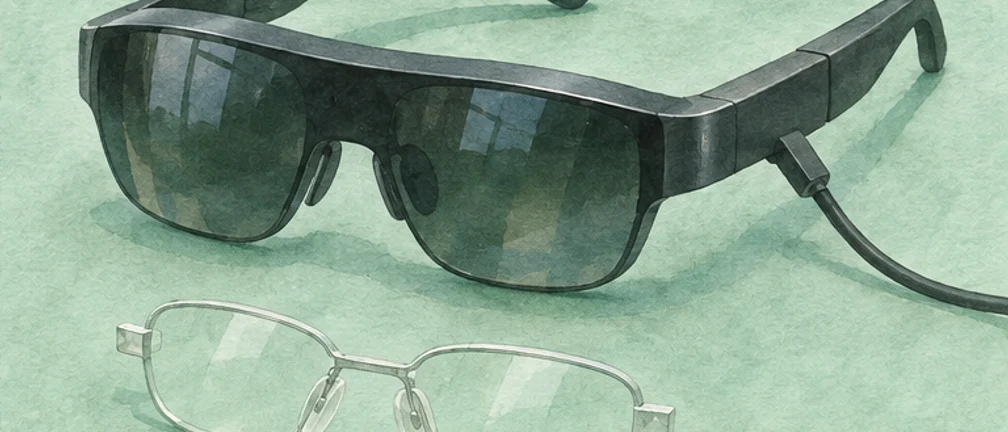
An insert holds corrective lenses inside the glasses without a second set of temples. Illustration.
One Pro comes in M for a pupil distance of 57–66mm or L for 66–75mm. Pupil distance measures the spacing between your eyes. A stronger prescription does not call for a larger frame. The included lens frame has no correction. Ask an optician about compatible lenses, cost and turnaround.[2]
For example, a VITURE user with simple myopia of −2.0D on one side and −3.5D on the other can adjust each dial independently. The dials do not set a cylinder axis or correct farsightedness. If your prescription specifies cylinder and axis, check whether an insert can be made for the full prescription.[3]
Pro 2 offers three nose-pad sizes and seven height settings. Centre the entire image before adjusting the two dials, then check the result with both eyes. Test both an upright posture and a glance down at the keyboard. Describe which corner clips, whether one eye is blurry or whether separate clear images fail to align. This gives an optician or shop staff much better information than a general report of blur. Ask for separate prices for the frame, lens work and delivery.[3]
Can you actually read code?
A Tom’s Hardware reviewer used One Pro with a MacBook Pro and could comfortably view text for extended periods. Another user, after two weeks, would travel with it but wanted more text than a 1080p view could hold for coding and noticed slight aberration near the edges. These first-hand accounts describe different working requirements.[6][7]
A single file can occupy the sharp centre. A side-by-side diff, terminal and file tree compete for the same pixels. Enlarging a 1920 × 1080 view does not add source lines. In a spreadsheet, try reading the selected cell and its distant column header in succession.[3][5]
For an illustrative 1080-pixel desktop, allow 180 pixels for application chrome. The remaining 900 pixels hold 45 lines at 20 pixels per line or 36 at 25. A 200-pixel terminal pane reduces the latter to 28. Try your usual function or diff at that line count. A designer can substitute a one-pixel outline, selection handle and low-contrast guide. Compare the same document against a plain wall and a bright window, then against the reference screen used for final decisions.
Try your own editor and laptop
Check DisplayPort video output on the USB-C port and plan how the laptop will charge. A charging-only socket cannot drive the glasses. One Pro has native Anchor positioning. On Pro 2, check the SpaceWalker requirements for the spatial layout you want.[5][3]
- Open a familiar file at your usual scale. Read punctuation, brackets and similar glyphs in the middle.
- Move that same line to each corner. Adjust the nose pad and see whether you still need to turn your head to read it.
- Finish one edit. Look at the keyboard, switch to a log and find the original line again.
- Increase text size one step. Count whether enough lines remain to review both sides of a change.
A following image stays straight ahead as you turn. An anchored image stays in place so you can turn towards an edge to inspect it. The choice changes viewing behaviour, not the pixel count. Mirroring the desktop can also leave private material visible on the laptop. Use extended display mode if you want separate documents on the two screens. On a managed computer, test which positioning or multi-screen functions actually work without installing additional software.[5]
Comfort over a working session
The Pro 2 weighs a claimed 63g. Nose pads, frame clearance and ear pressure determine where that weight lands. Tom’s Guide found it more comfortable than its predecessor. That individual assessment does not establish an all-day coding limit.[4][8]
Finish a short task before judging comfort. Record whether you keep pushing the frame up, feel pressure on the bridge or prefer the physical screen immediately afterwards. A change of nose pad can solve a pressure problem. It cannot add workspace. Remove the glasses and rest if you experience eye pain, headache or nausea. The sources here do not establish a universally comfortable duration.
Let the cable hang naturally to the laptop rather than supporting it during a fitting. Test armrests, headphones and looking down at the keys. The supplied Pro 2 shade can improve contrast against a bright backdrop, but consider how often you refer to physical notes or reach for a drink.[3]
Record the task alongside elapsed time, scale, first pressure point and reason for stopping. Change one condition in the next session. Thirty minutes of video does not establish thirty minutes of dense diff review. Learn how to move the work back to the physical display before testing longer sessions.
Travel display or primary monitor?
For occasional edits away from home, check correction, connectivity and punctuation in your editor. The Pro 2 dials are appealing for unequal simple myopia. One Pro offers a way to try your current spectacles. If you review dense diffs or spreadsheets all day, include insert costs and try the actual task before purchasing. Movie subtitles are a poor proxy for a tiny change marker at the edge.
References

NOVEL SERIES VOL.1
The World Became Slightly Farther Away
The world may not change, but distance can.
A story about a man who cannot treat promises lightly, and the people he meets.The sequel, Clouded Glass, is out too. Start here.
View on Amazon
Jijoden.com
Your life is worth writing.
There is a truer self you can tell only to AI.Gather fragments of memory into a single story.
Take a LookRelated Articles
How to Choose the Best Cursor Plan: Pro vs Pro+ vs Ultra (2025 Edition)
A comprehensive comparison of Cursor's latest pricing plans (Pro, Pro+, Ultra) using mathematical formulas. Learn how to choose the optimal plan based on your monthly usage and when Ultra becomes the best choice.
Complete Guide to Devin AI Developer Agent – The 2026 Ecosystem and the Reality of Autonomy
A deep dive into Devin, the leading AI developer agent, as of August 2026. Explore its desktop integration, the new subscription model vs. enterprise ACU, Cursor comparisons, and realistic operational best practices.
Git Commands Masterclass: 10 Hidden Features You Can't Afford to Miss
Beyond git add and commit! Learn Git's powerful hidden features from basics to advanced techniques. Master practical tricks like git stash -p, worktree, and reflog that professionals use daily.
How Big Does a Company Have to Be to Get Slow?
Why can a feature spend a year in the queue? Amazon, Google, Toyota and Japan Airlines offer different ways to connect authority, evidence and action.
Choosing a curved ultrawide for one PC or two
A November ranking, three 34-inch options, and practical ways to tile windows or connect two computers.
From the Pocho Lab